



The best way to learn teamspace is by using it. These seven exercises take you once through the whole process – from contact to e-invoice. Solve them in your demo account; there are usually several ways to do each one, and that is exactly what builds your confidence in using teamspace.
Tip: Don’t look at the solution too early – try it yourself first. In the video, pause after each task and solve it before the solution is shown.
Exercise 1 – Create a contact
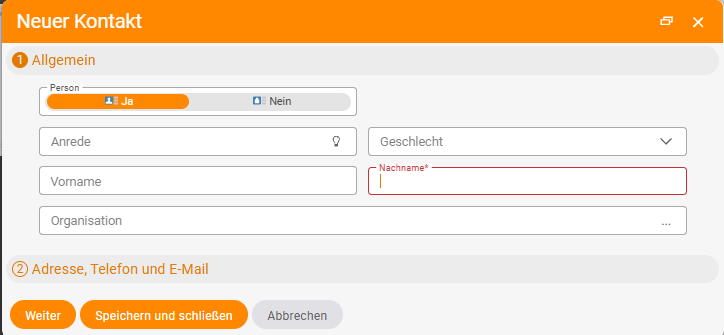
Create the contact Max Neu for Große Marke GmbH, with a phone number and email.
Three ways:
- Via the list: Go to the contact list, click the plus at the top, then enter the first and last name, the organisation (type part of the name, e.g. “Marke”, or choose it via the three dots), the email address and the phone number → Next opens the contact.
- Floating, via the lower plus: Wherever you are, click the plus at the bottom → New contact. Save and close keeps you in the current list; Next opens the contact.
- From the organisation: Go to the organisation “Große Marke” (this also shows you whether it already exists), then click the plus there – the organisation is now pre-filled and you only need to add the personal details.
Exercise 2 – Write a quote
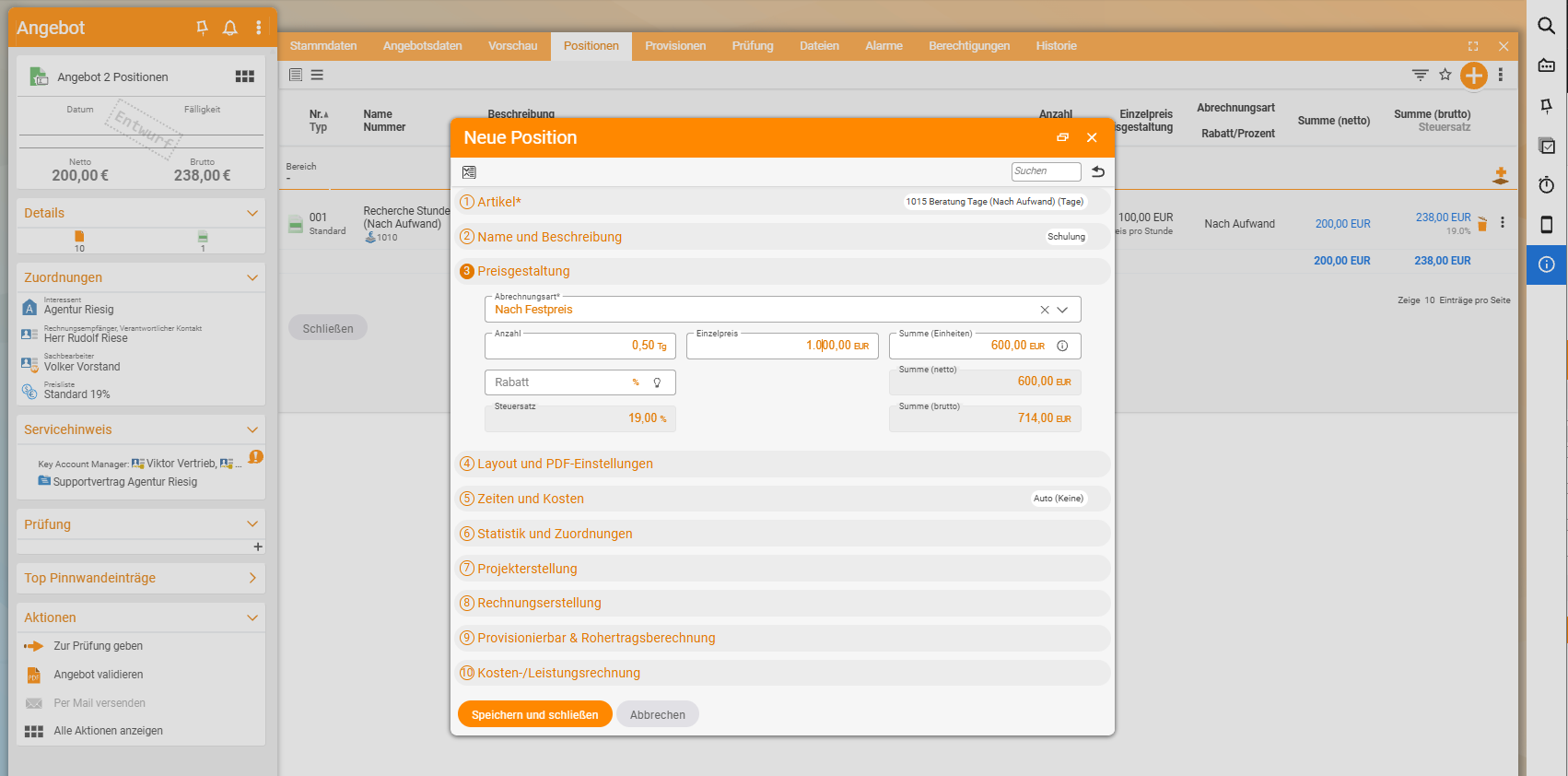
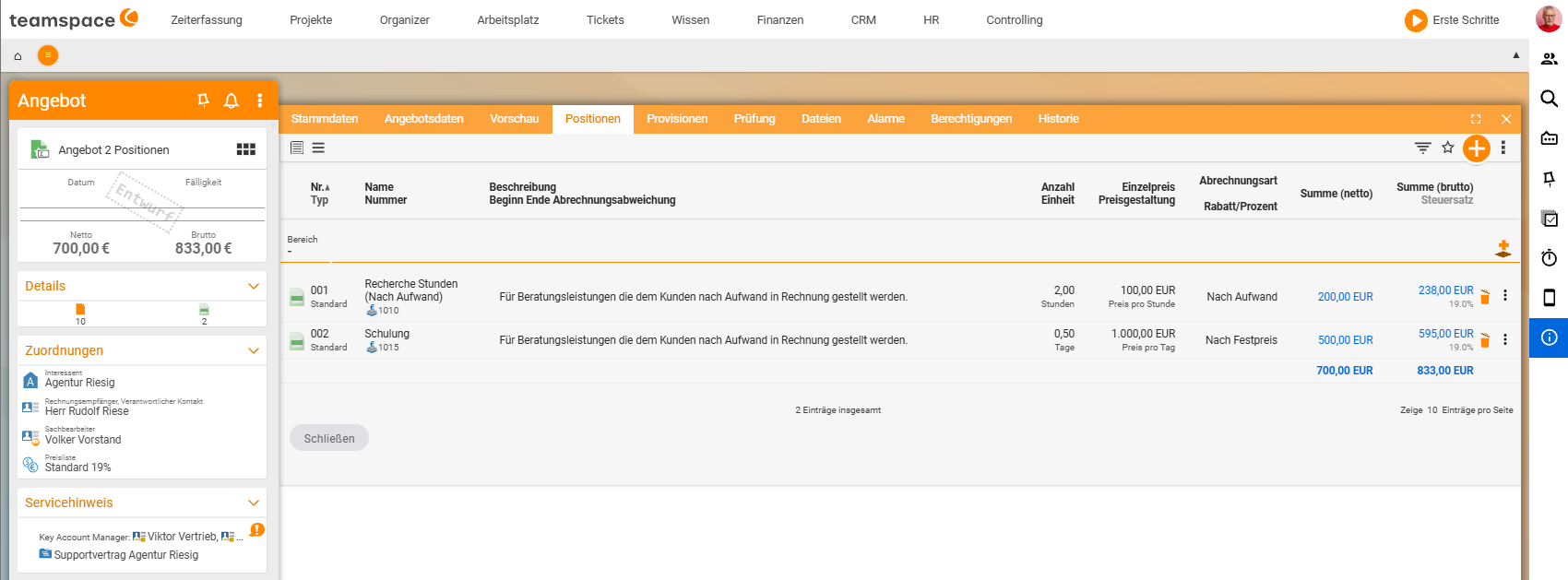
Write Max a quote with two items: Research by effort (2 hrs, €100.00) and Training at a fixed price (half a day, €500.00).
Solution: Click the plus at the bottom → Create quote → Empty quote → choose the contact “Max Neu” (the data is filled in) → Next. In the quote, use the plus to choose an article for each item, adjust the label (e.g. “Research”) and set the quantity and price (2 hrs at €100.00 and 0.5 day at €500.00 respectively) → Save. Create quote then gives it a number, ready to send.
Exercise 3 – Create an appointment
Create a presentation appointment for Max and you, next week Tuesday 1–5 pm, in your office.
Solution: Go to the Organizer → Overview, jump forward one week and click Tuesday at 1 pm. Give it a title, set the start to 1 pm and the end to 5 pm, and set the location to local (meeting room) – or create it as an online/Teams appointment. Use Next to go to the detail manager and add both participants (internal: you, external: Max); internal participants receive the invitation. (Alternatively, do this directly from Max’s contact manager via the “Appointments” tab.)
Exercise 4 – Generate an order
Generate an order for Max from the quote (same items).
Solution: Find the quote again (via recently used elements or in Finance → Quote tracking). Use the Generate order action → Save – all the data is carried over. Create order confirmation then makes the order ready to send.
Exercise 5 – Generate a project
Generate a project for Max from the order.
Solution: Open the order → use the Create project action (you will also find it in the action box) → Main project → Save and open. teamspace enters the budgets (2 hrs research, half a day training) as work packages. Optionally, add the people working on it and schedule appointments.
Exercise 6 – Book time
Book a time for the research: 1 hour, billable.
Three ways:
- Time tracking → My day → the project appears under Top projects (because you are working on it) → enter 1 hour → Save.
- In the project, book the time directly into the research row.
- Via the plus (floating) → select the project or sub-element → book 1 hour.
Exercise 7 – Write an e-invoice
Write Max an e-invoice for the one hour and send it by email.
Solution: Open the order → Billing tab (both items are billable). Three options:
- Create invoice → everything, then delete the item you don’t want (training).
- Multiple selection → Create invoice and tick only the item you want.
- Control which item is billed via the project progress: only when you set the progress of the training to 100% does that item become “billable”. Until then, teamspace bills only the finished item.
Create invoice then gives it a date and number, and it goes out by email as an e-invoice.
Notes
- As you can see, there is almost always more than one way to reach the goal – the list, the floating plus, the detail manager or the action box.
- While practising, feel free to delete and try again as often as you like. That is exactly what the demo account is for.
- The full, connected sequence is described as an overview in From quote to invoice.