


Once the payment deadline has passed, sending a reminder in teamspace is just a button press away: you change the reminder level, and the system generates the reminder PDF with the deadlines, fees and texts you defined in advance. There is nothing left to type.
Keep an eye on the receivables status
In Invoice management / Credit control, the summary box shows where each invoice stands: Open, Due (green dot), Overdue (orange dot, at a reminder level) and Action required (red dot – payment deadline passed, no reminder level triggered yet). Action required is your work list.
Change the reminder level
When the payment deadline has passed, the reminder runs via the Change reminder level action in the Actions. Four levels are available:
Payment reminderReminder level 1Reminder level 2Debt collection
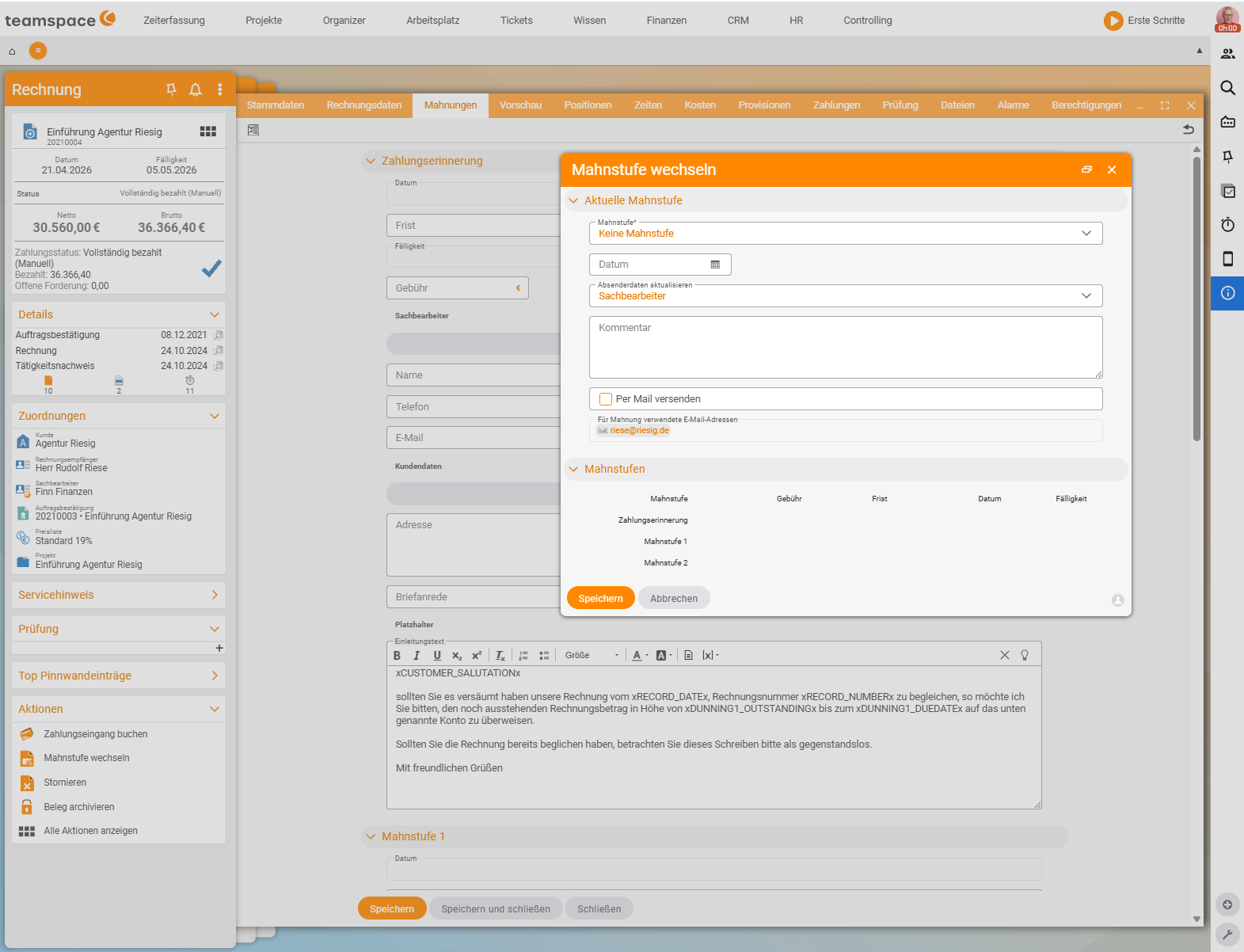
In the Change reminder level dialog, you select the new Reminder level (there is also None to reset), a Date, the Sender details and, optionally, a Comment; tick the checkbox to send the reminder straight away. On changing the level, the system generates the reminder PDF with the conditions defined in advance (verified live on 25 June 2026).
Maintain the conditions per level
You maintain the deadline and fee for the next level in advance on the Reminders tab – that way, all conditions are already prepared when you change level:
Deadline– the number of days the customer has until the next level.Fee– the amount in the house currency that this level costs.Address– the customer address from the invoice, which can be overwritten.Introductory text– the cover text for the reminder.
ℹ Tip: Maintain the deadline and fee right after creating the invoice. Then every subsequent level is prepared, and changing the level is a single click.
Common questions & needs
| You want to … | How to |
|---|---|
| See which invoices are overdue | Status Action required / Overdue in Credit control. |
| Remind gently rather than chase hard | Choose the Payment reminder level. |
| Charge a reminder fee | Enter the Fee per level in advance on the Reminders tab. |
| Adjust the reminder text | The Introductory text field per level on the Reminders tab. |
| Account for a partial payment | First Record incoming payment (the partial amount) – see Invoices. |