



An e-invoice is an electronic invoice in a structured format – not a PDF you have to re-type, but data that the recipient’s system reads directly. teamspace creates and reads both common formats: ZUGFeRD (a PDF with embedded structured data) and XRechnung (pure XML). Once it is set up, sending works just like a normal invoice – you click Send by email and the correct file is attached.
⚙ Mandatory since 01.01.2025. Companies in Germany must be able to receive and process e-invoices in the B2B sector – without the recipient’s prior consent. The obligation to send is being phased in with transitional periods.
Prerequisites – what must be in place before the first send
If any of these is missing, the invoice is rejected by the recipient or read without structured data:
- Complete address of your own company (including country) – in the CRM, in the organisation’s master data.
- VAT ID of your own company – in the master data under “Customer aspects”.
- Bank details as a supplier – at least one bank account, in the CRM record of your own company set as a
Supplierbank account (not as a customer bank account – that is the most common pitfall). - Gross calculation on a tax basis – under
Configuration → Finance → Settings, theGross calculationmust be set toTax base amount. - PDF/A-3-compatible layout – fonts and images must be ZUGFeRD-ready; the logo must not have any transparency (a one-off setup).
Routing ID (Leitweg-ID) – for the federal administration
The routing ID (Leitweg-ID) addresses invoices specifically within the federal administration. It sits in the Buyer Reference field (BT-10, buyer reference). You maintain it in the recipient’s CRM contact; if the field is not visible there, you activate it under Configuration → CRM → Settings.
Set up e-invoicing
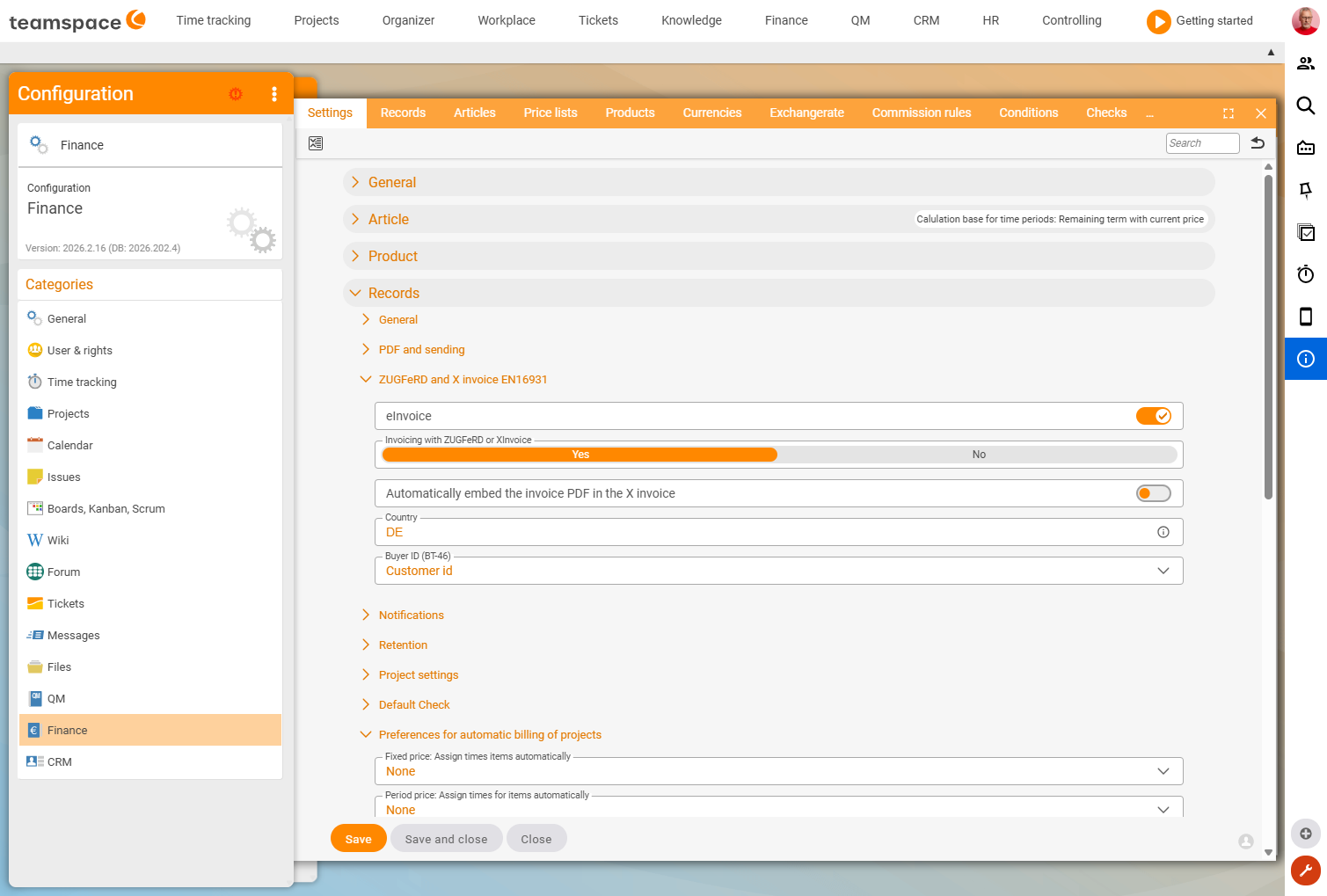
Under Configuration → Finance → Documents you activate e-invoicing using the ZUGFeRD and XRechnung toggle. Below it sits the Invoicing selection:
- all invoices as e-invoices by default,
- only certain customers (selected in the organisation’s master data),
- only certain templates.
If e-invoicing is set as the default, every new invoice carries the barcode symbol and the system automatically creates both formats.
Default purchasing article for incoming e-invoices
So that the line items of an incoming e-invoice can be taken over, you need a Default purchasing article. You create it in the article master data (ideally with the purpose Purchasing) and store it under Configuration → Finance → Settings → Documents, section ZUGFeRD and X-Rechnung EN16931, field Default purchasing article. It is used for every line item and overwritten with the name, description and price from the imported line item.
Send an e-invoice
With e-invoicing active, sending works just like a normal invoice: Actions → Send by email – the email dialog is pre-filled and the file is attached. Usually a ZUGFeRD invoice goes out (a readable PDF with structured data behind it). If you want a pure XRechnung (XML only), you remove the PDF file from the attachment.
On an individual invoice you switch e-invoicing on or off via Activate edit mode → Invoicing via ZUGFeRD switch. On the Invoice data tab (section Document data) you then see the BT fields that every e-invoice must carry. If a recipient rejects the invoice and names a specific field (e.g. “BT-11 is not filled”), you look exactly there – the meaning of the fields is given in the BT fields reference.

Receive an e-invoice
teamspace automatically recognises an incoming email with an e-invoice attached (barcode symbol). You click the attachment and choose Create incoming invoice. The system shows the extracted data; the supplier and contact are suggested and created directly if you wish. With Next the incoming invoice is created – on the Preview tab you see the human-readable PDF version, on the Document data tab the fields. The further workflow (review, approval, payment) is described in Incoming documents.
Check an e-invoice – when something does not go through
The essential data of an e-invoice is invisible – in the PDF behind the printed image, in the XML it is raw. To look inside, you need a program that makes the structured data readable. A reputable, advert-free way to do this is the ELSTER service: elster.de/eportal/e-rechnung. Upload a ZUGFeRD or XRechnung file and it displays the structured data in a readable form – helpful when a recipient flags fields.
Common questions & needs
| You want to … | How to |
|---|---|
| Send all invoices as e-invoices | Activate ZUGFeRD and XRechnung, set Invoicing selection = all. |
| Send an XRechnung only to public authorities | Remove the PDF from the email attachment and send the XML only. |
| Address an invoice to a public authority | Maintain the routing ID (Leitweg-ID) (BT-10) in the CRM contact. |
| See why an e-invoice was rejected | Check the BT fields on the Document data tab; visualise with ELSTER if necessary – see the BT fields reference. |
| Capture an incoming invoice without typing | Email attachment → Create incoming invoice. |
| No money is coming in | Check the bank details set as Supplier in your own CRM record. |