


So that documents are created quickly and consistently, you set up document templates. If documents are to be reviewed before dispatch, you attach an approval workflow to the document type. And for sales remuneration, commission rules take care of it, which teamspace calculates automatically when invoicing. The mental model behind status and document rights is in Understanding documents: status & document rights; here it is about the setup.
Document templates
For each document type you need a template. Standard templates are already set up for the common types. You add your own templates when you keep modifying the standard in the same way – a different price list, different document rights, different default line items.
You create the template via Configuration → Finance → Documents → New template. In the dialog you choose:
- Document type – quote, order confirmation, invoice, invoice correction, letter, purchase order.
- Layout – the PDF layout into which the document is rendered.
- Name – so you can find the template again when creating a document.
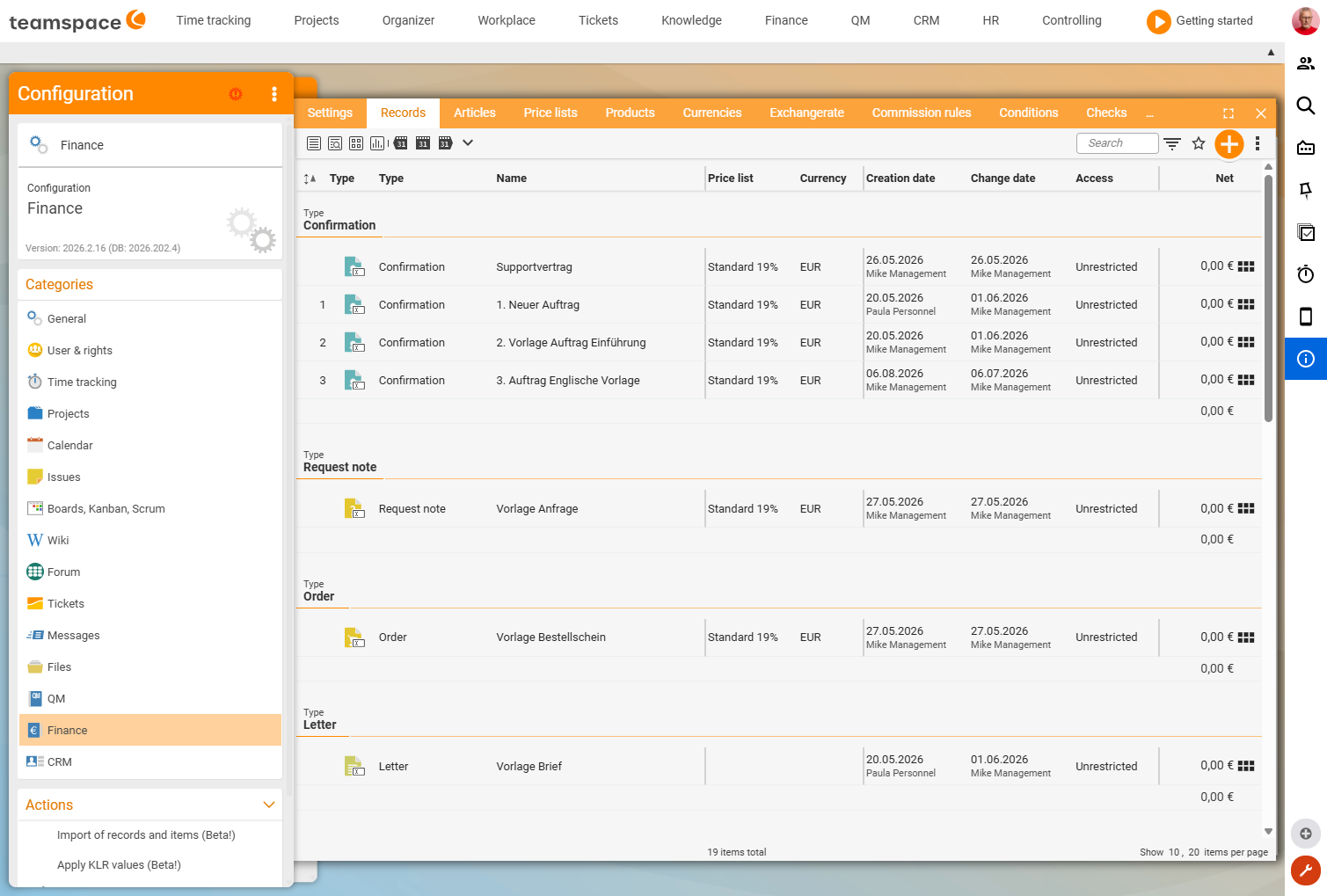
In the template’s detail manager you store a Price list (recommended – without it the system asks for one on the first document: “Please select a price list”). You can create line items in advance and maintain document rights in advance; documents created from this template already come with line items and rights. When creating a document, all matching templates for the chosen type appear in the selection.
Approval workflows
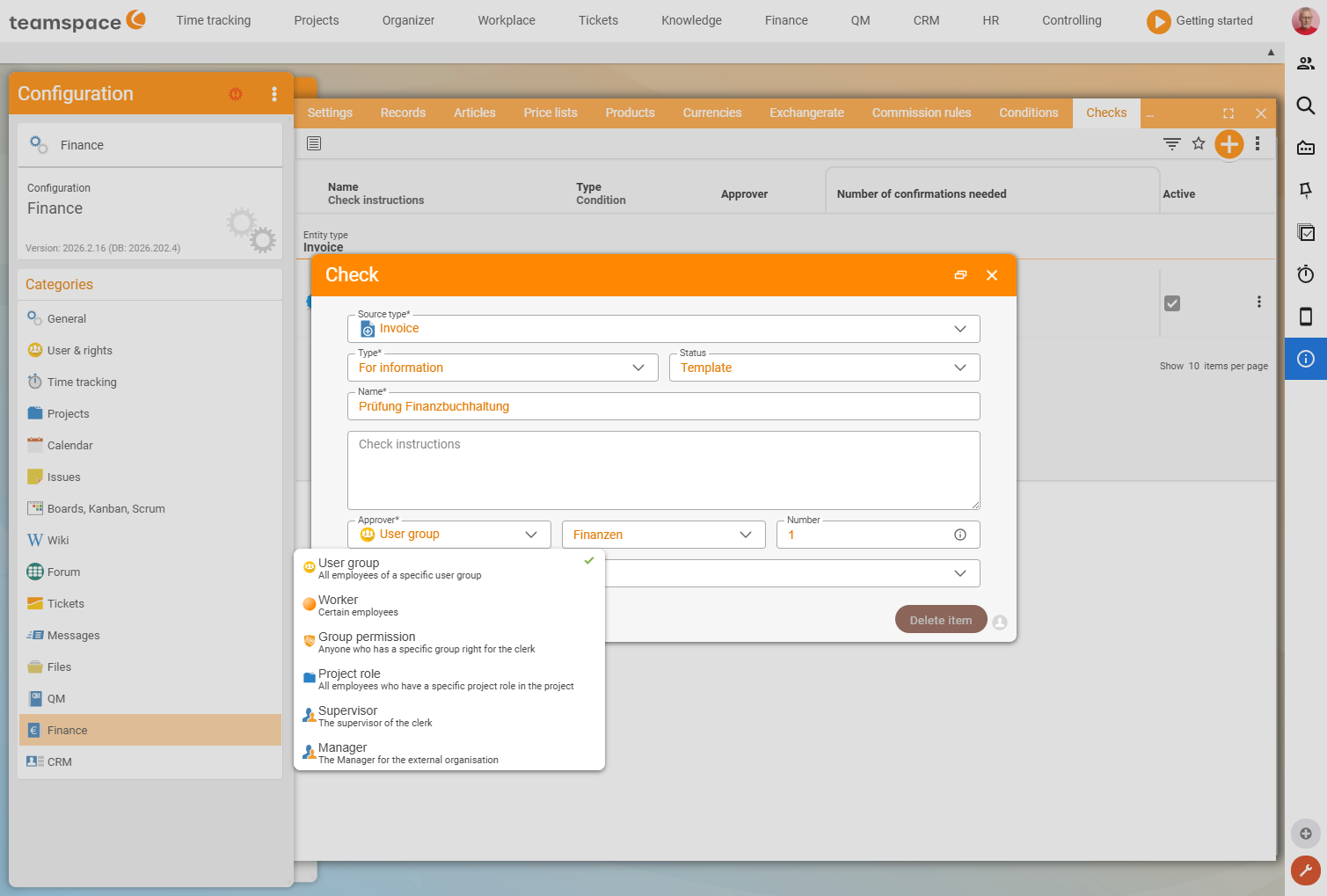
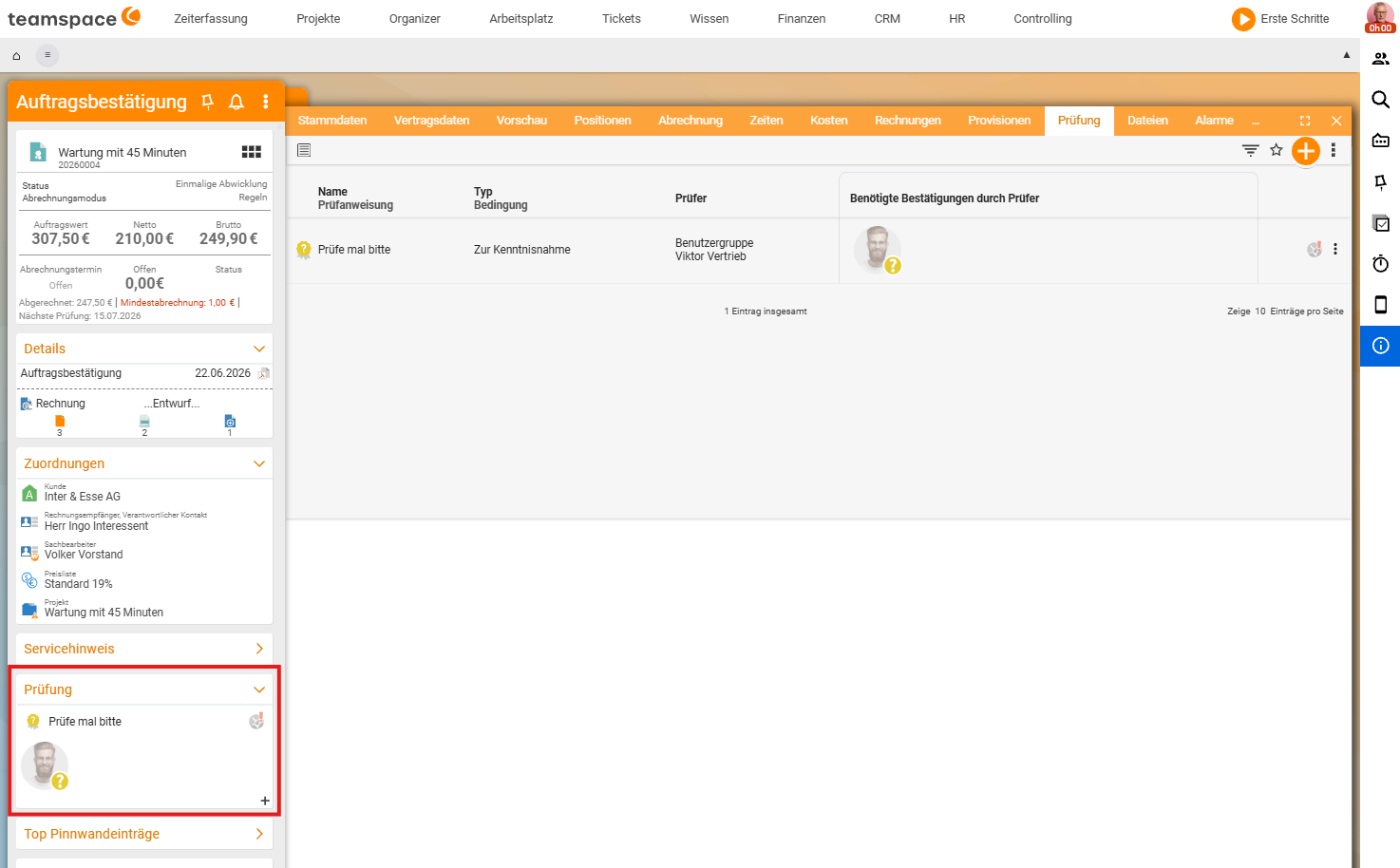
If a document is to be reviewed internally before dispatch, you attach an approval workflow to the document type. With an active workflow, the employee cannot validate the document themselves – they submit it for review. The designated reviewer receives a notification, opens the document, approves it or rejects it; only after approval does the document move to the next stage. The workflow and review conditions are defined in advance in the configuration – the processing then happens automatically.
Commissions
In the Commissions tab on the document you see which commission rules apply and which amounts have resulted from them. You create the rules in advance in the configuration; from the invoicing of an order the system calculates the commissions automatically and lists them with their respective values.
Common questions & needs
| You want to … | How to |
|---|---|
| New documents always with a fixed price list | Store the price list in the document template. |
| Pre-fill default line items | Create line items directly in the template. |
| Assign document rights automatically | Pre-maintain document rights in the template – new documents inherit them. |
| Four-eyes review before dispatch | Set up an approval workflow on the document type. |
| Calculate sales commission automatically | Commission rules in the configuration; display in the Commissions tab. |
Related topics
- Understanding documents: status & document rights Invoicing Concept
- Articles and price lists (with video) Invoicing Configuration
- Topic: Permissions Permissions