



The order is the hub of billing. It knows which line items are billed at which hourly rates and at which point in time, gathers times and costs from the linked project and ultimately produces the invoice. You create it directly or generate it from a quote – line items, contract data and addresses flow over without any double entry.
Create an order
From the Order billing list or the Document overview you create an order via + → New document → type Order confirmation (template, short info, contact – as with the quote). If the order comes from a quote, it runs via the Create order action in the quote.
You land in the detail manager in the Draft status. The document number and PDF are only created on validation via the Validate order confirmation action (checked live on 25 June 2026) – and you must validate the order confirmation before you can issue an invoice.
Contract data – the status of the contract
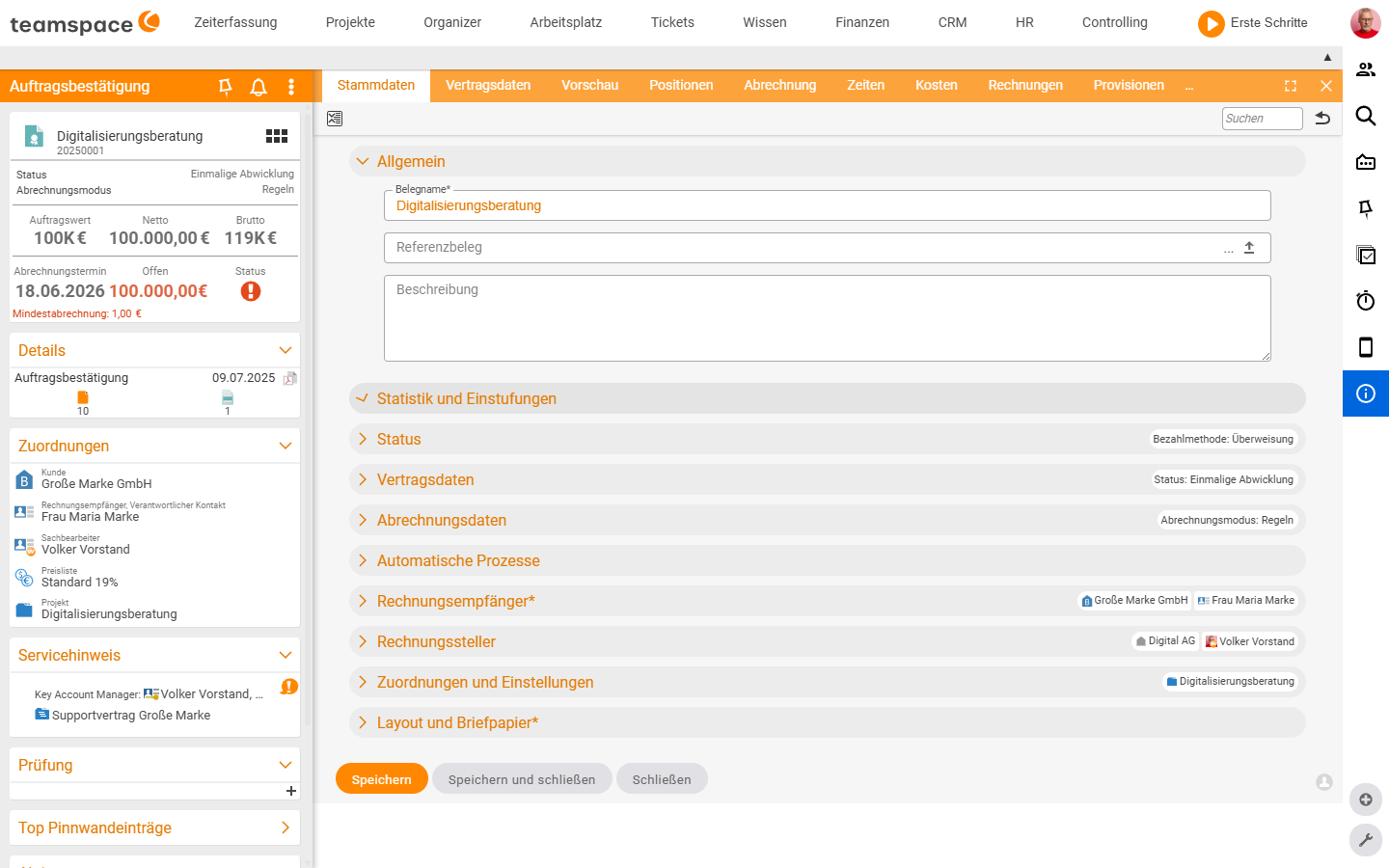
In the master data under Contract data you define how the contractual relationship runs: One-off handling, Automatic renewal (with deadlines and conditions), Paused, Finished or Cancelled. You filter the Order billing list by status (Ongoing contracts, Standard contracts, Recurring contracts).
Billing data – when the order turns red
In the Billing data you determine when the order is flagged as “to be billed now”. There are five billing modes:
Rules(default) – the system checks conditions; once all are met, the order turns red.Manual– no automatic display; you set a billing date.Payment plan– billing according to a fixed plan (partial invoices + final invoice).Billing rules– detailed conditions per line item (partial amounts depending on project status).Billed– a manual closing status; further changes are locked. WithRulesandPayment planthe order jumps here automatically once it is mathematically complete.
In the Rules mode, four criteria apply individually or in combination:
Earliest next billing date– billable from a given date.Billing period– how often the billing prompt is shown.Project progress criterion– red when the project reaches the progress level. With theOn subproject basischeckbox it counts per subproject.Project status criterion– red from a given project status.Minimum billing criterion– minimum amount before billing.
The billing data applies to the whole order. It can be overridden per line item – for example a line item with its own progress threshold, while the rest follows the order.
Payment plan – partial invoices and final invoice
In the Payment plan mode you define when which amount is billed – via four types: Partial amount (fixed amount on a date), Percentage (a share of the order amount), Line item (one specific line item) and Final invoice (always the last entry; deducts the partial invoices already issued). As soon as the next plan date is reached, a calendar icon appears on the status and you can issue the amount via Create invoice (payment plan).
Create a project from the order
From the Actions you run Create project – the order creates its project. How the line-item configuration controls what is created in the project, and how times find their way back onto the line items, is described in How projects and orders work together. Several orders for one project are possible – for follow-up orders you attach the new order to the existing project.
Three order values – Net, Plan, Value
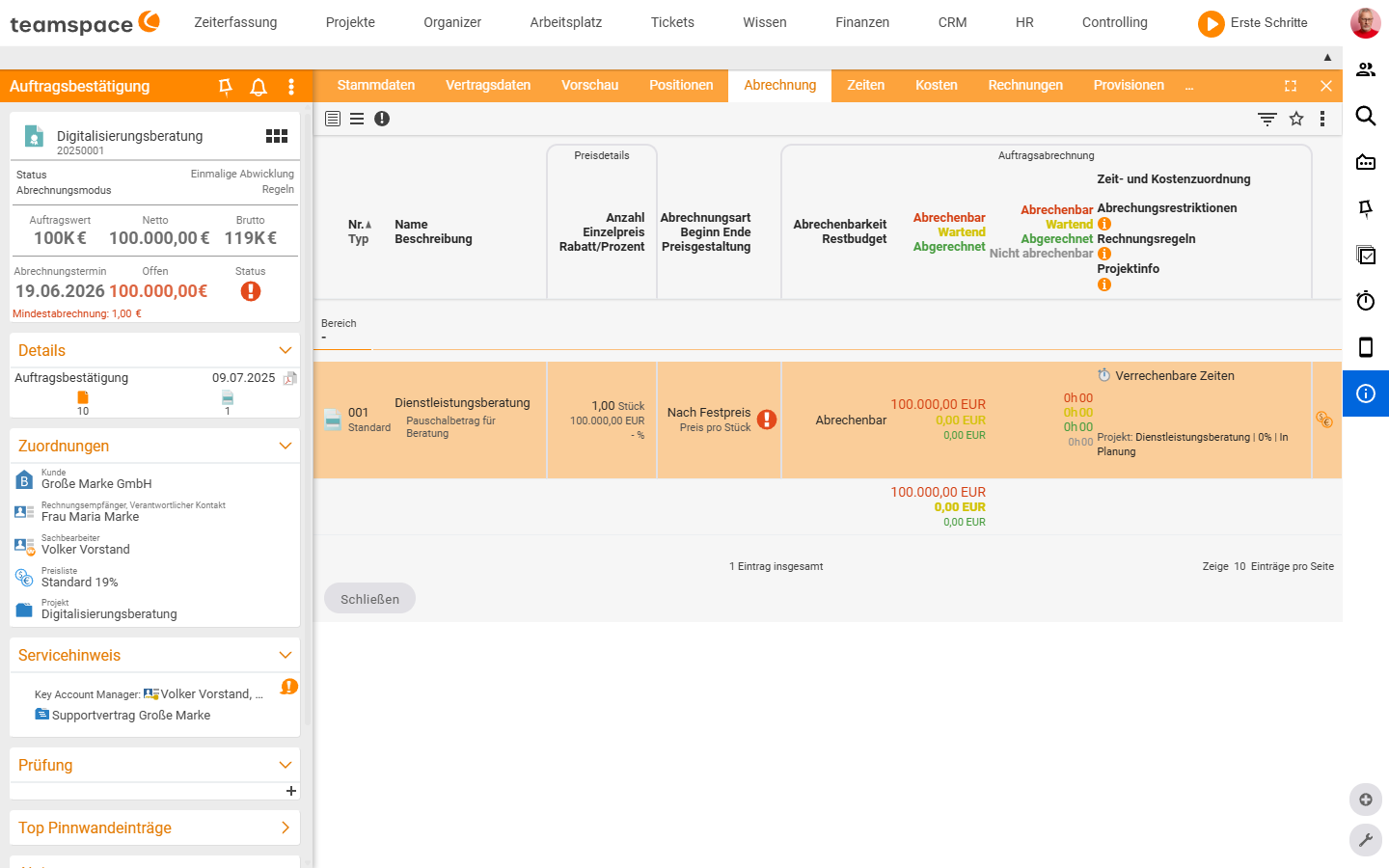
The order has three value concepts that you show as columns in the order list:
Net value– the sum of all line items excluding alternative and optional ones. Static.Order plan value– at least as high as the net value; grows via time-duration items (monthly cost × elapsed periods). A 25-licence line item at €13.45 per month contributes €2,016.90 after six months – whether or not it has already been billed.Order value– at least as high as the plan value; grows through services actually billed. If 20 hours are billed instead of 10, the line item stands at €2,000 instead of €1,000.
Via the filter settings of the Order billing list you show the three values – and see order totals across several orders at a glance. The “future revenue” report builds on these values.
Tidy up an order
For long-running orders with many price adjustments, the line-item list becomes cluttered. From the Finance → Orders list you run the Tidy up action via multiple selection – fully handled line items move into an Archive section on the order. You set the name once in Configuration → Finance → Documents → Default group for tidying up.
Potential billing errors
The system warns you if the price of a time-duration item is changed after an invoice has already been issued – this would recalculate retroactively. The clean way is Adjust price and size via the three-dots menu; everything about this is described in Adjust prices in ongoing contracts.
Common questions & needs
| You want to … | How to |
|---|---|
| Bill only when the project is finished | Rules mode, Project progress criterion = 100%. |
| Bill subproject by subproject | Project progress criterion + the On subproject basis checkbox. |
| Issue partial invoices on fixed dates | Payment plan mode with the types Partial amount/Percentage and Final invoice. |
| Bill a single line item differently from the order | Override the billing data on the line item. |
| See future revenue from ongoing contracts | The order plan value / “future revenue” report. |
| Tidy up an overfilled order | Multiple selection → Tidy up (name the archive section in the configuration first). |
Related topics
- Issue invoices and record payments Invoicing How-to
- How projects and orders work together (with video) Invoicing Concept
- Recurring invoices Invoicing How-to
- Order management · Order billing