


teamspace/projectfacts comes with a simple web app for attendance recording built in. With this web app you can turn any device with a web browser into a time-tracking terminal – this can be an all-in-one PC, a tablet or even a smart TV. Placed at the entrance to your office, it lets you record times almost in passing.
Open the terminal
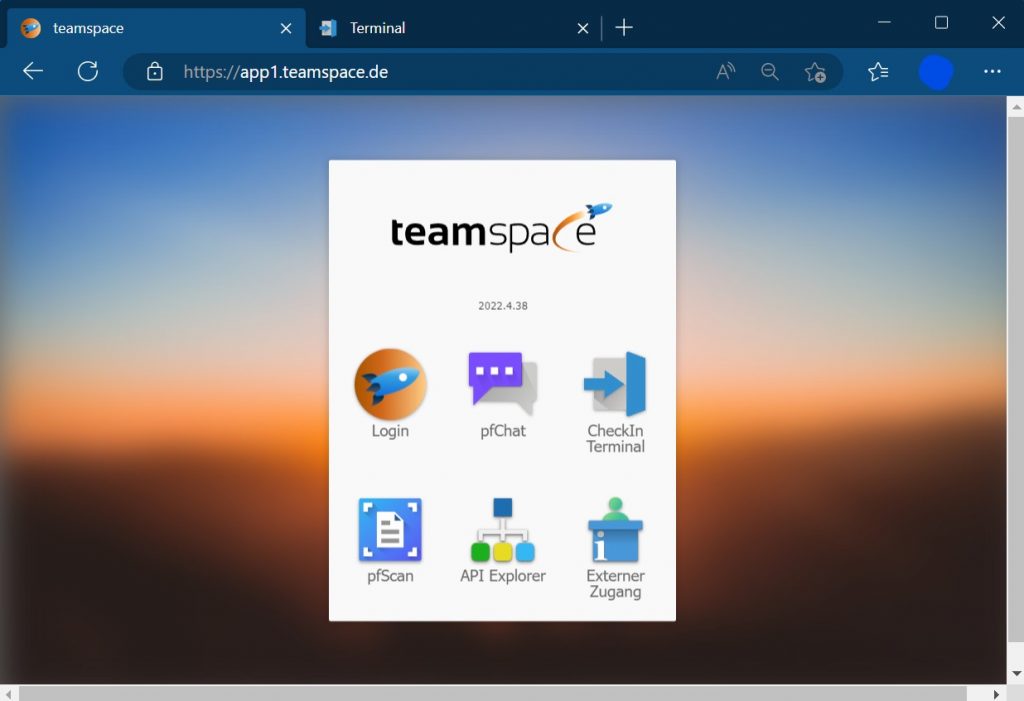
You will find the web app at <server>/htdocs/apps/terminal. Alternatively, you can simply enter the URL of your teamspace server in the browser; the check-in terminal is then linked from the overview.
Install the web app
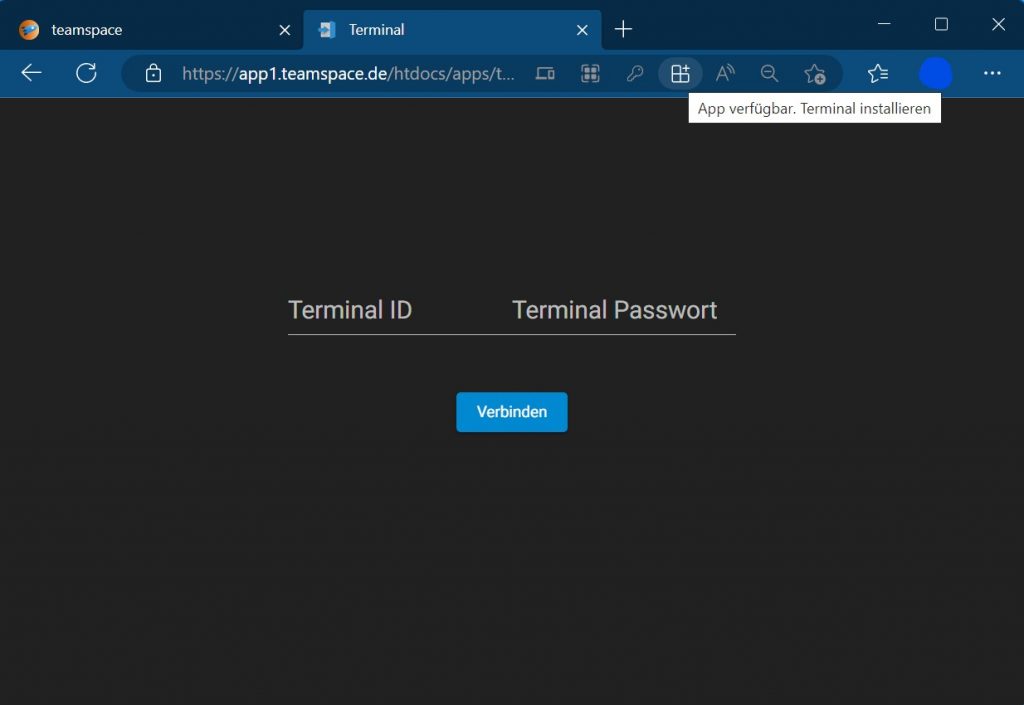
Before you establish the connection to teamspace, you should install the web app – especially if it is an iOS device. For more information on installing web apps, see the article Install teamspace as an app (PWA).
Connect to teamspace
To connect the app with your teamspace, it needs an API access, which you create in the teamspace configuration. It is important that this API access is granted all the necessary permissions to check users in and out. For more information, see the article API access authorisation for terminals & services.
Notes
- Any device with a web browser is suitable as a terminal – for example an all-in-one PC, a tablet or a smart TV.
- It is best to install the web app before the first connection, particularly on iOS devices.
- The API access must hold all the rights required to check users in and out, otherwise the connection will not work.
Common problems
Why won’t the terminal connect to teamspace? The API access is missing rights. It must hold all the necessary permissions to check users in and out – see API access authorisation for terminals & services.
Why should I install the web app before connecting? On iOS devices in particular, installing the web app before the first connection matters. How to do this is described in Install teamspace as an app (PWA).
Where do I find the terminal web app?
At <server>/htdocs/apps/terminal. Alternatively, open just the URL of your teamspace server and follow the link to the check-in terminal in the overview.
Common questions & needs
| You want to … | How to |
|---|---|
| Turn any device into a terminal | Open the terminal web app at <server>/htdocs/apps/terminal on a device with a web browser (all-in-one PC, tablet, smart TV). |
| Connect the terminal to teamspace | In the configuration, create an API access with all check-in/out rights and store it in the app. |
| Set up the terminal on an iOS device | First install the web app, then establish the connection. |
Related topics
- Build a check-in/out terminal (hardware) Configuration Configuration
- Install teamspace as an app (PWA) Configuration How-to
- API access authorisation for terminals & services API Configuration