


Some apps – such as the iPhone sync, the Outlook add-in, teamsync or a piece of self-developed software – cannot cope with Microsoft SSO or two-factor authentication (2FA). So that you can still connect such apps using a classic combination of username and password, without compromising on security, there are device passwords.
My devices
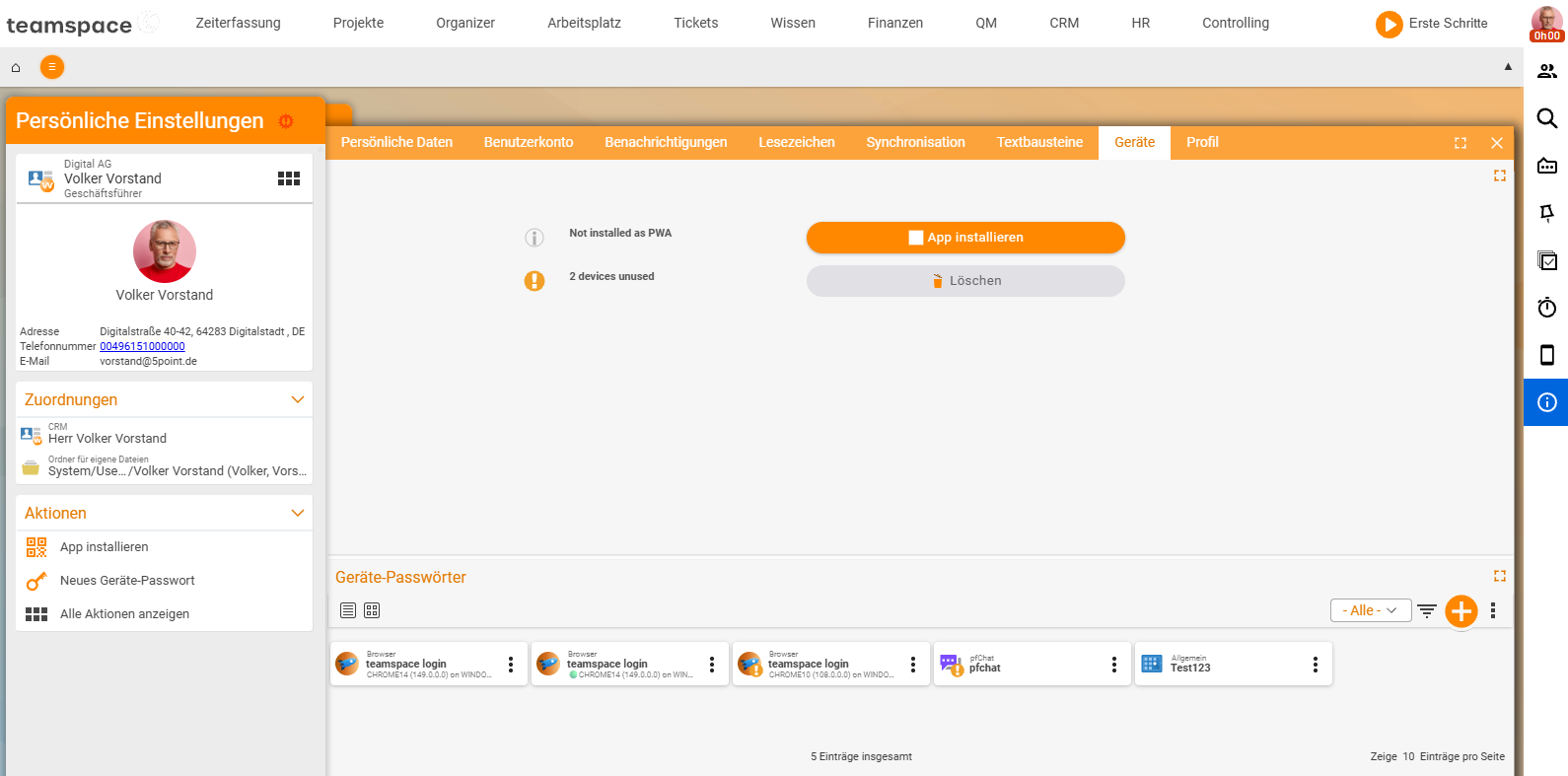
In your personal settings, under “Personal settings → Devices”, you will find all logins to your user account – including the one you are currently using in the browser. Whenever a “device” (a browser, an app or a software plugin) signs in, a new entry is created here.
- Each entry is the device’s “permission” to access your data in teamspace.
- If you delete an entry, access for that device is blocked.
- You can rename entries to make it easier later to recognise which device is connected.
- You should delete old logins that are no longer in use from time to time to keep things tidy.
Create a device password
Every successful login automatically creates a device. But if you use 2FA, you cannot enter the 2FA token when, for example, you want to connect your Thunderbird calendar. That is why the process can be reversed: you create the entry manually in teamspace and then enter the device password in the target app. Please create a separate device password for each device.
- For a new device password you only specify a type and a name (both are purely for your own reference).
- The username and password are generated automatically and cannot be changed.
- For security reasons the password is not stored. Copy it straight into the target app or make a note of it – it cannot be displayed again later.
Compatibility
Device passwords work in all apps that allow a simple login via username/password. The exception is the main teamspace application itself. If you run into problems, please check whether a newer teamspace version is available.
Typical use cases for device passwords:
- API
- ApiExplorer
- CalDAV, CardDAV (iPhone, Thunderbird, …)
- Outlook add-in
- pfScan
- teamsync
Notes
One password per device: Create a separate device password for each device or app. That way you can block an individual device deliberately without affecting other connections.
- The password is only displayed once – copy it immediately.
- Delete logins that are no longer in use regularly to keep access clean.
Common problems
Why doesn’t my device password work in the main teamspace application? Device passwords work in all apps with a simple username/password login – with one exception: the main teamspace application itself. If the problem occurs with another app, check whether a newer teamspace version is available.
Why can’t I display my device password again? For security reasons the password is not stored and cannot be displayed again. If you have lost it, simply create a new device password.
Why can’t I enter the 2FA token in my calendar app? CalDAV, Outlook and teamsync apps cannot process 2FA or Microsoft SSO. That is exactly what device passwords are for: you create the entry in teamspace and enter the username and password in the app instead of using the 2FA token.
Common questions & needs
| You want to … | How to |
|---|---|
| Connect an app despite 2FA or SSO | Under “Personal settings → Devices”, create a device password with a type and name and enter the username/password in the app. |
| Block access for a single device | Delete the corresponding entry under “Personal settings → Devices” – only that device loses access. |
| Tell your devices apart more easily later | Create a separate device password per device and rename the entry. |
| Replace a lost device password | Create a new one – the old password cannot be displayed again. |
| Tidy up old logins | Delete entries that are no longer in use regularly. |
Related topics
- Synchronise calendars & contacts Configuration How-to
- Introduction to teamSync teamSync Introduction