


The larger a company, the more important group-specific permissions become. They answer person-related questions that ordinary rights cannot capture: who is allowed to see whose times? who requests leave for the temporary staff? who can see whom at all in the colleagues list in the top right? You give a group an authorised operation, state which affected group or person it applies to, and optionally define exceptions.
Two ways to the same model
You reach the group-specific permissions via two paths that point to the same data:
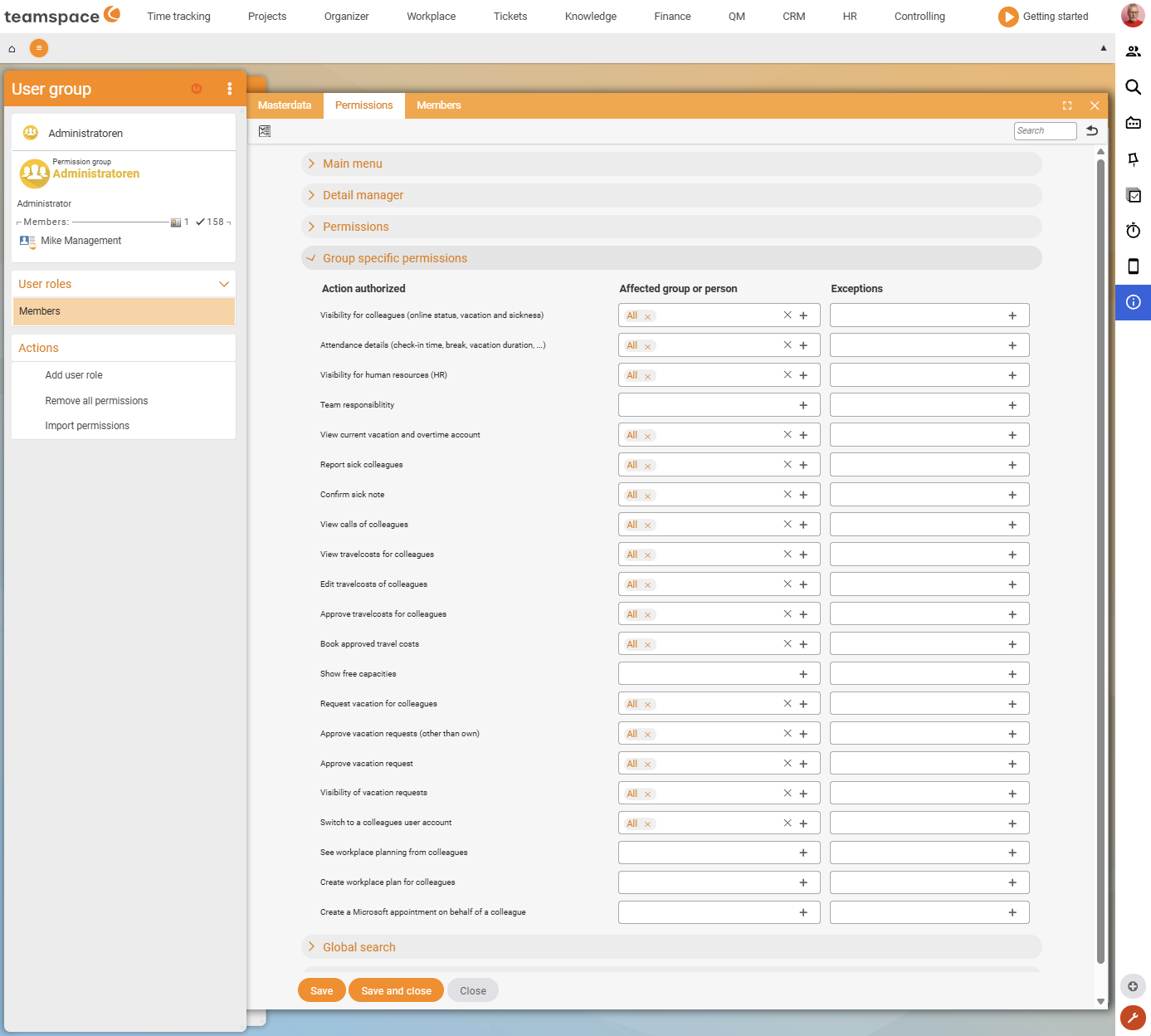
- Per user group. In the user group modal, on the
Permissionstab, you expand the Group-specific permissions accordion. You see all operations this group is allowed to perform – and for which groups of people. - Centrally via the
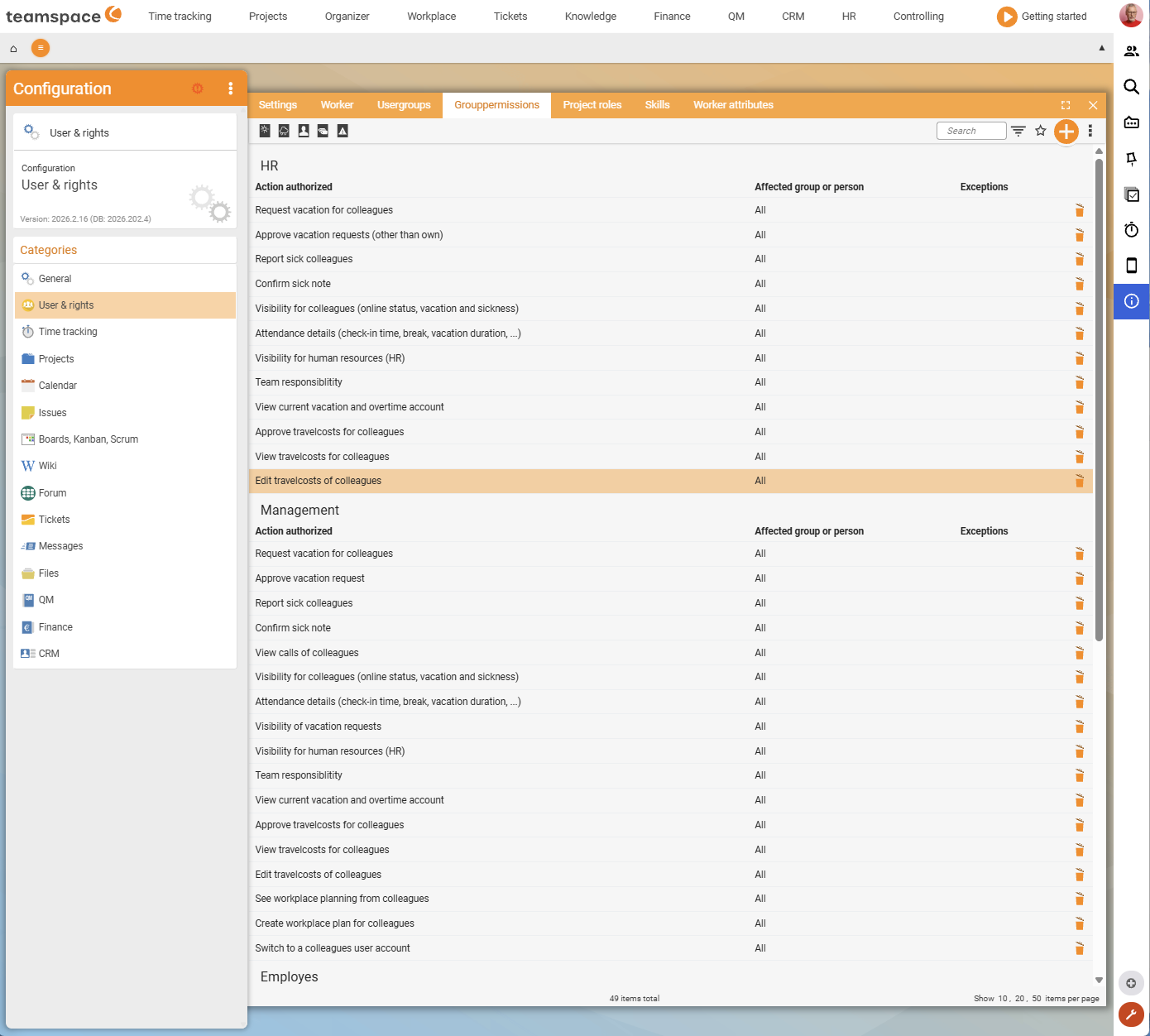
Group rightstab. In theUsers & rightscategory, the tab shows all rules of all groups side by side, grouped by authorised group (HR,Management,Employees, …).
Which path suits you: if you are configuring a new group, work in the user group modal. If you want to understand who currently performs which operations, the central tab is faster – at a glance you see how much HR and Management cover by comparison.
Three fields per right
Each group-specific permission consists of three fields:
- Authorised operation – what may be done or seen. Always from a predefined list – you do not invent anything here, you choose.
- Affected group or person – for whom the right applies. The default is
All. You can choose one or more specific groups (e.g.Employees,Sales) or add individual people. Multiple values add up – the system collects everyone you are allowed to see/record. - Exceptions – people who are explicitly removed from the affected group, even though they belong to it.
Example, collecting & removing: Volker Vorstand is to see all colleagues in the colleague visibility, except Pia Personal. You set Colleague visibility (online status, leave and sickness) with affected group All and enter Pia Personal under Exceptions. Result: Volker sees everyone – only Pia is excluded via the exception.
Operation categories
The operations essentially cover four themes – the complete, searchable list is in the Catalogue of group-specific operations:
- Visibilities: colleague visibility, attendance details, visibility for HR areas (HR), colleagues’ phone calls, available capacities, workplace bookings.
- Responsibility: team responsibility, view leave/overtime account balance.
- Processes: request leave for colleagues, approve leave requests, report sick, certify a sickness report.
- Travel costs: view, edit, approve and post travel costs.
Most operations are self-explanatory from the wording – Certify a sickness report does exactly that.
Creating a new group permission
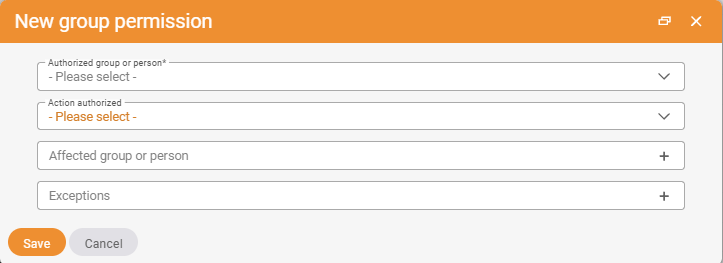
On the Group rights tab you create a new rule via the blue + button at the top right. The New group permission dialog shows four fields:
- Authorised group or person – mandatory, drop-down (default
- Please select -). Who receives the right? (e.g.HR) - Authorised operation – mandatory, drop-down. Choose the operation from the list.
- Affected group or person – chip field with
+. Add entries or leave it onAll. - Exceptions – chip field with
+. Optional.
Confirm with Save. You edit an existing row by clicking on it (typically you change Affected group or person or Exceptions); deleting is done via the bin icon on the right of the row.
Quick filters in the top-level list
The list on the Group rights tab has quick filters on the left of the toolbar that shortcut typical search occasions: Leave, Sick, My colleagues, Costs and Switch into a colleague's user account. Handy for questions such as “who may approve whose travel costs?” or the delicate question “who can hook into other people’s accounts?” – one click shows only the matching rows.
Switch into a colleague’s user account
One particularly powerful operation deserves its own attention: Switch into a colleague’s user account (staff change). Anyone with this right hooks into another user’s session via the staff change and works from then on with that person’s rights and visibilities.
Useful for testing a permission: you set up a new group and want to see whether the main menu looks as planned for the tester. Switch, look, switch back. While the change is active, teamspace shows a note at the bottom of the interface that you are currently working in another session.
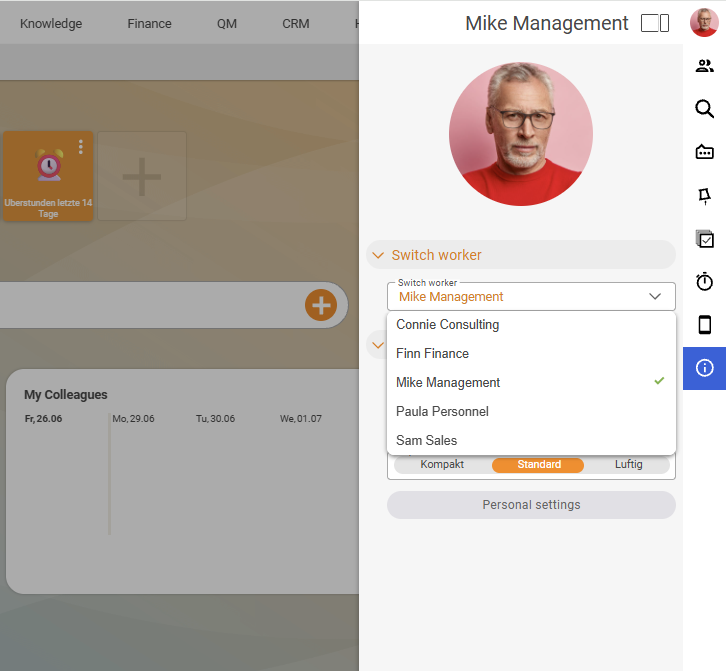
⚠ Grant with care. Anyone who has the change can perform actions under someone else’s account – send emails, approve documents, create items. In practice this right is typically held by a small group (administrators, possibly HR); when setting things up, sometimes briefly by Management, then removed again in day-to-day operations.
How group-specific rights interact with module rights
A group permission alone is often not enough. For an HR employee to actually certify a sickness report, they need all the building blocks together:
- the module access to the HR area (the
Main menuandPermissionsaccordions – see User groups), - the group permission
Certify a sickness reportwith the appropriate affected group, - possibly a protection class, if the sickness report is stored as a protected document.
If one is missing, they cannot get to it. Loopholes and the element level are explained in Project roles, protection classes & clerk rights.
Common questions & needs
| You want to … | How to |
|---|---|
| Have a team leader see their team’s times | Operation Leave/overtime account balance or time visibility with affected group = the team. |
| Only the colleagues at your own location in the online list | Colleague visibility with affected group = location group instead of All. |
| Exclude one person from the visibility | Leave affected group All and enter the person under Exceptions. |
| HR may request leave for everyone | Authorised group HR, operation Request leave for colleagues, affected group All. |
| Quickly see who may enter other accounts | On the Group rights tab, use the quick filter Switch into a colleague's user account. |
| Test a permission safely | Grant the staff change operation to a small group, switch into the tester, check, switch back. |
| All rules of a group at a glance | The Group rights tab, grouped by authorised group. |
Related topics
- Catalogue of group-specific operations Permissions Reference
- Create and manage user groups (with video) Permissions Configuration
- How permissions interact – the six levels Permissions Concept
- Topic: Personnel & HR Personnel & HR