


In the Workplace module you book desks, offices and parking spaces for the days you need them. You see which places are free and where your colleagues are sitting, and when you need to, you set up a recurring plan that repeats itself week after week. Which places are bookable at all, and what rules apply to them, is decided by your company through the configuration.
The module is made for flexible office concepts – desk sharing, flex office, hot desking: no more fixed assigned places, but everyone books what they need, when they need it.
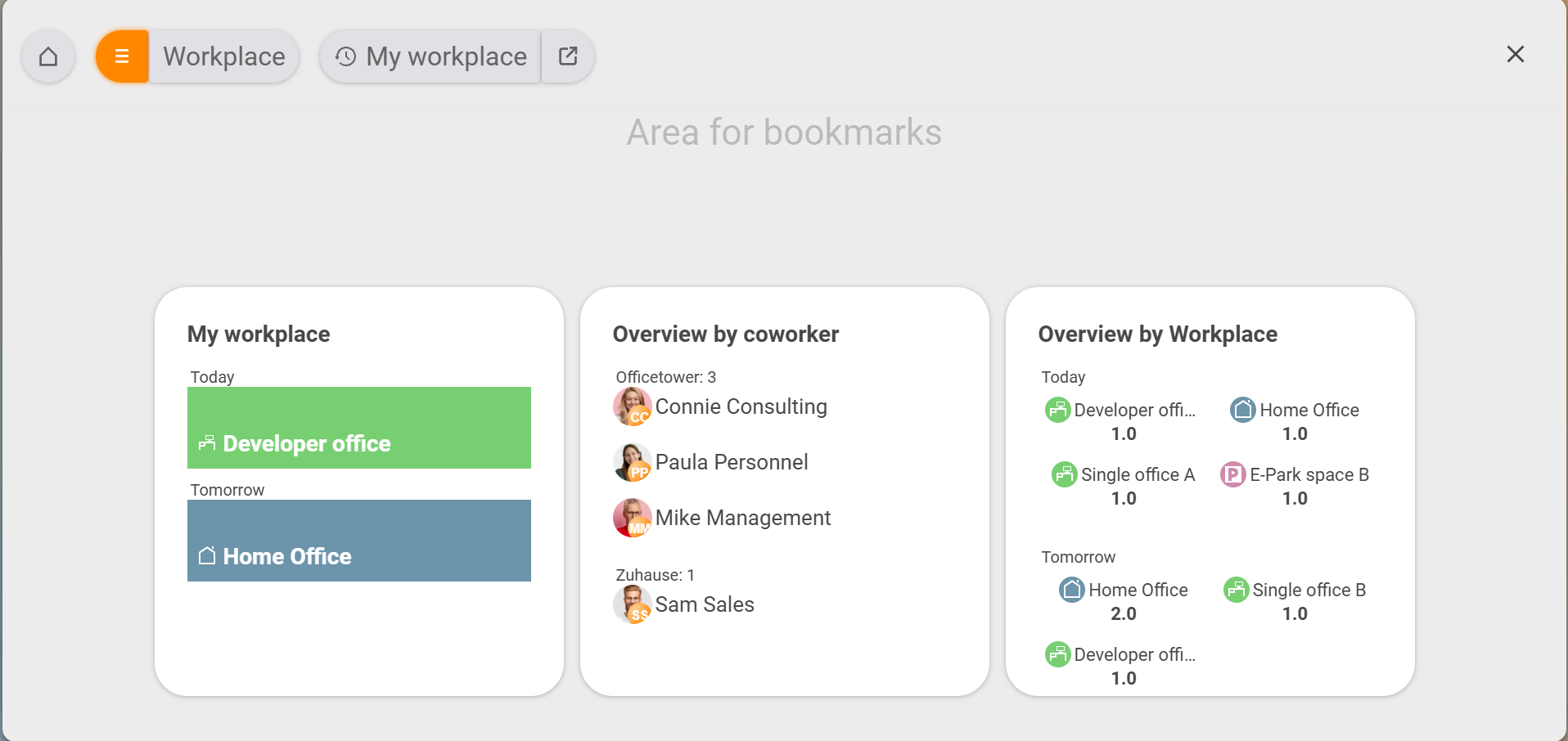
Three views of the same places
You enter via the main-menu item Workplace. This opens the bookmarks area with three tiles; from then on a tab row with the same three views appears below the top bar.
- My workplace – your personal weekly calendar. Here you book, change and delete.
- Employee overview – a timeline per colleague. You see who is in the office and when, and who is planning to work from home.
- Workplace overview – a timeline per resource. You see how many places are still free each day.
Which view you need depends on your question: make your own booking → My workplace, plan a meeting → Employee overview, look for a free place → Workplace overview. They are three angles on the same data. How you read them and when each one helps is covered in The three views.
What a booking is
A booking links a date, an employee and a workplace resource – that is, a desk, an office, a parking space or a home-office entry. A booking applies for a full day or a half day.
Several resources per day are possible: typically a desk plus a parking space. Each resource is its own booking; you create them one after another. How creating, changing and deleting works is shown in Book a desk or parking space. If your day looks the same every week, you record it once as a recurring booking – then the week runs automatically.
What a resource is
Resources are the individual places the company releases for booking: a desk in the open-plan office, a self-contained single office, an EV parking space, a home-office entry – each one a resource of its own.
Every resource belongs to a category and carries four properties:
- Capacity – how many people the resource accommodates (a desk: one; a developer office: e.g. six).
- Availability – whether the resource is bookable at any time or only at certain times.
- Equipment – special features such as a whiteboard, projector, height-adjustable desk or charging point.
- User group – who is allowed to book the resource at all.
Setting up categories and resources happens not in the module but in the system configuration – that is an admin task and is covered in Set up categories and resources.
Who sees what – and who may do what
teamspace separates the three views by role. Every employee sees and maintains their own weekly calendar under My workplace and sees their colleagues’ bookings in the Employee overview. They can only book resources whose user group includes them.
Who may create categories and resources, set recurring bookings for others or change booking rules depends on the group permissions for the module – see Topic: Permissions.
Three typical occasions
Anna needs a desk in the open-plan office tomorrow. She opens
My workplace, clicks on the day, picks a resource in theNew bookingdialog and saves – done in two clicks.
Tom wants to go into the office with the sales team, but only if the others are there too. He opens the
Employee overview, sees that on Thursday three of four colleagues are on site, and places his own booking on that day.
Volker is planning a workshop week and is looking for a free office with a projector. He opens the
Workplace overview, filters by category and date, sees the remaining capacity per day and books the whole week through.