


The central controls of time tracking sit in the configuration. Here you define which categories and billing categories are available for selection, how breaks are calculated and how long bookings may be edited.
Configuration › Time tracking › SettingsAttendance and absence categories
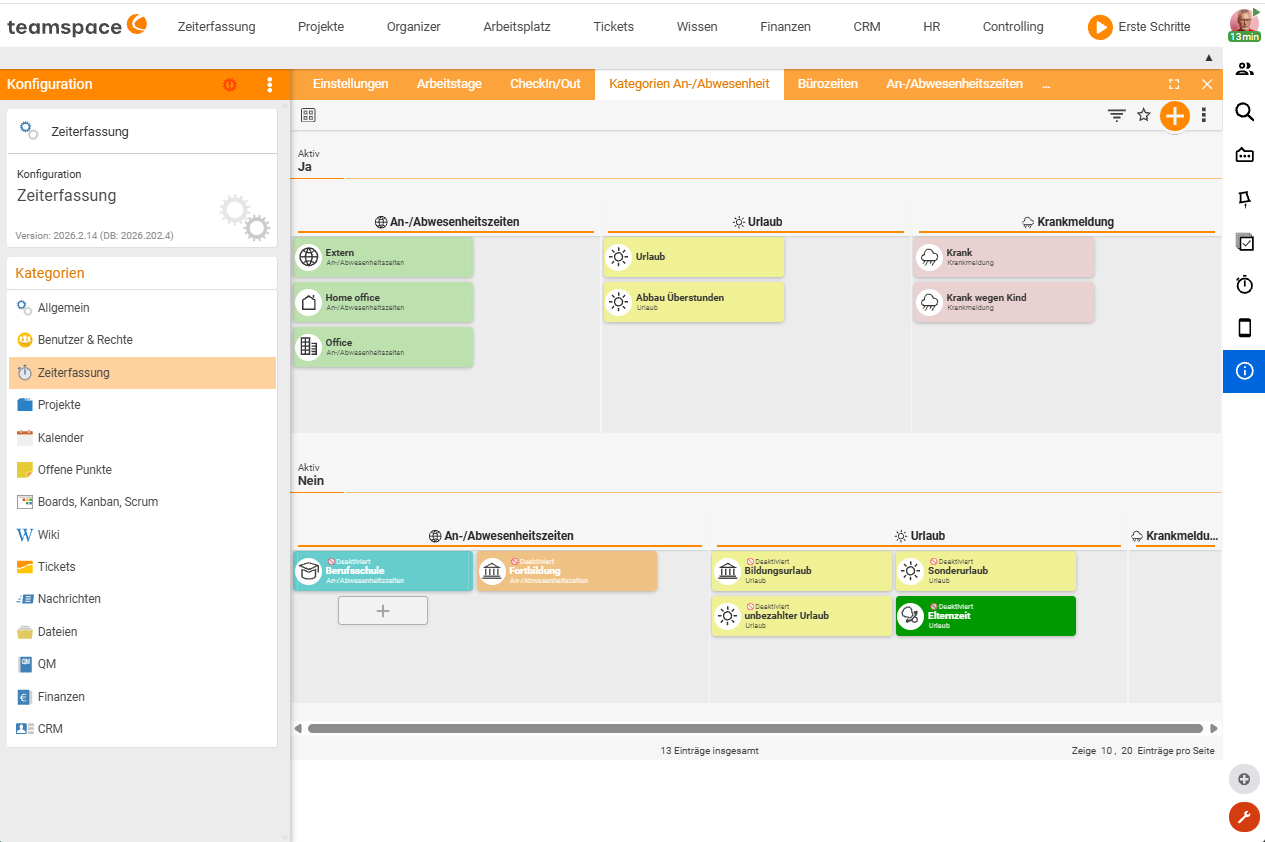
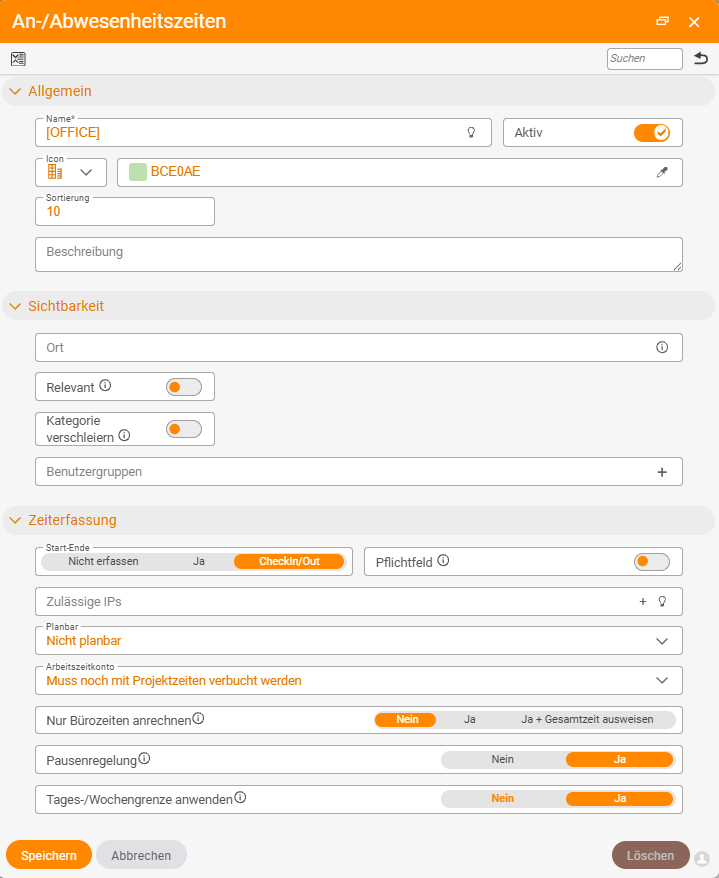
With categories you control what can be selected when clocking – work locations (Office, Home office, External work) as well as absences (Leave, Sick, Vocational school, Training). Each category is active (selectable) or passive (hidden) and can be planned by date (all-day, “full working day”) or by period (with a start/end time). Per category you configure:
- Name, colour, icon and sorting – for quick recognition in the chart.
- Relevant – whether the category is offered in the booking dialog.
- Start-end – whether the time is clocked by check-in/check-out (
CheckIn/Out) or entered manually (Do not record/Yes). - Permitted IPs – location-based clocking (IP restriction).
- Protect details – hides the details of an absence for data-protection reasons (e.g. in case of sickness).
- Office time counted – the start/end time from which attendance counts towards the target.
- Break rule – e.g. an automatic deduction of 30 minutes after 6 hours.
- Daily limits / maximum per month – e.g. no more than 10 hours per day.
- “Release on sickness” – automatically returns leave days when sickness is reported (see Record leave and sickness).
Categories and areas for project times
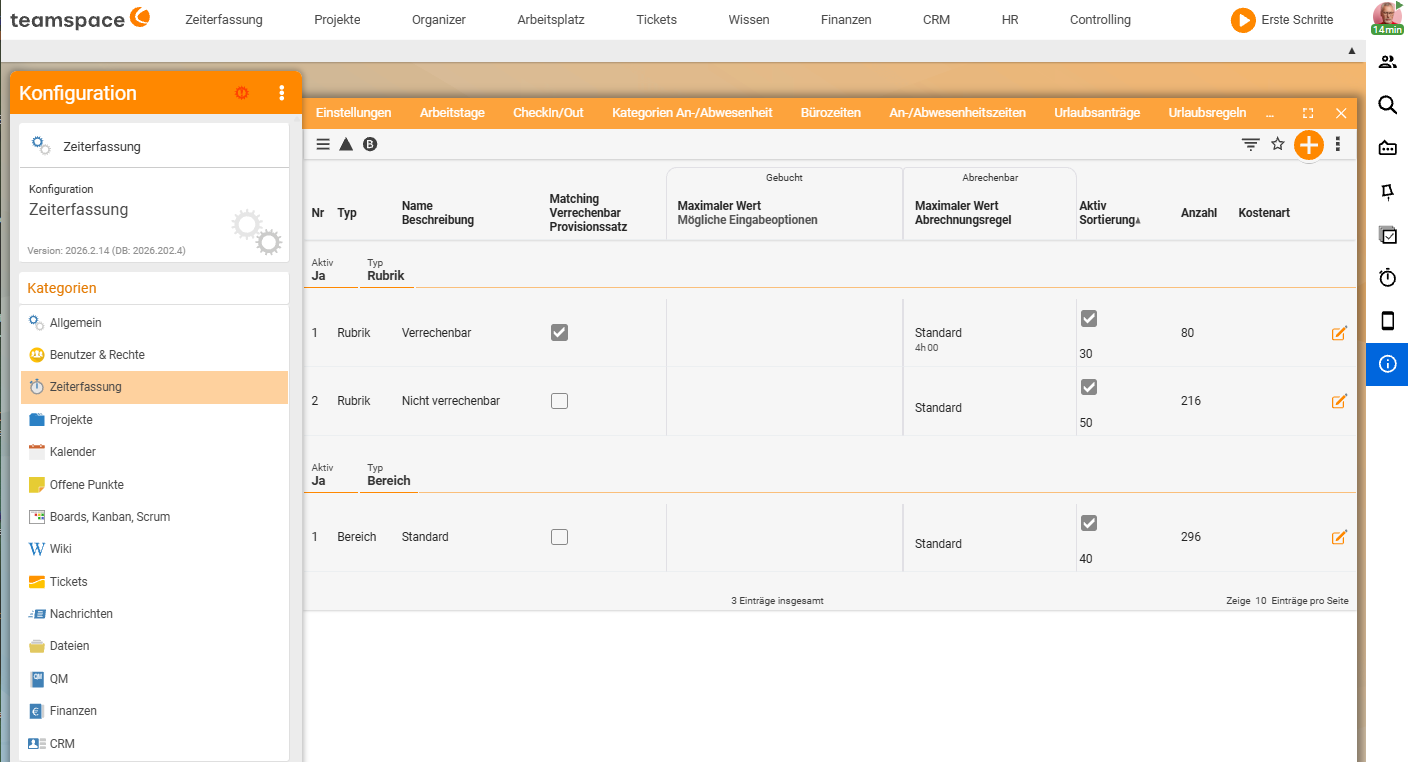
Categories govern the billability of every project booking (Billable, Non-billable, Travel time, On site …) and can set a billing increment (e.g. quarter-hours) as well as trigger different hourly rates in order processing (e.g. Senior consultant / Junior consultant). Areas map additional areas of activity (e.g. Programming, Design, Administration). For both you can:
- create and name them freely (plus sign),
- enforce them as a mandatory field,
- pre-fill them per work package (permitted values + default),
- restrict them per employee (permitted values + default),
- later use them as a filter in analyses.
Adjusting the booking dialog
For project times you define what the booking dialog looks like:
- Description as an optional or mandatory field; optionally with a pre-filled default text.
- Show/hide internal comments.
- Record start/end rather than just a duration (breaks are then deducted automatically).
- Show additional fields (from-to time, break time, custom properties).
Less is more: every additional mandatory field increases the recording effort and lowers booking discipline. Enable only what is actually analysed.
The time matrix can also be configured here (default period, visible info columns) – see Time matrix.
Editing deadlines
Two mechanisms limit how long bookings may be made retrospectively:
- Employee-specific deadline – e.g. “1 week” or “by the 4th of the following month”. Encourages booking discipline.
- Automatic time release / locking – global, monthly or weekly. Safeguards the accounts. Details in Lock time entries.
Permissions
Who may edit other people’s times, lock centrally or approve hours is controlled via user-group rights (the Permissions → Working day area). Grant rights sparingly and in line with roles.
Notes
- Changes to categories and billing categories affect new bookings; existing ones keep their values.
- Plan the categories early and lean – they are the basis for billing and analyses and can only be changed later with some effort.
- For device-based clocking, additionally set up a time terminal.
Common questions & needs
| You want to … | How to |
|---|---|
| Define what can be selected when clocking | Via categories, maintain work locations (Office, Home office …) and absences (Leave, Sick …) and set them to active or passive. |
| Deduct breaks automatically | Store a break rule per category (e.g. 30 minutes after 6 hours). |
| Set a daily limit | Define daily limits / maximum per month per category (e.g. no more than 10 hours per day). |
| Hide the details of an absence | Enable Protect details on the category (e.g. for sickness). |
| Control which categories/areas exist | Under Categories and areas, create them freely, enforce them as a mandatory field and pre-fill them per work package/employee. |
| Make a description mandatory | In the booking dialog, set the Description as a mandatory field, optionally with a pre-filled default text. |
| Record start/end instead of just a duration | Enable Start/end in the booking dialog – breaks are then deducted automatically. |
| Limit how far back bookings can be made | Set an employee-specific deadline or use locking. |
| Enforce location-based clocking | Store Permitted IPs (IP restriction) on the category. |
Related topics
- Lock time entries Time tracking How-to
- Set up a time terminal (with video) Time tracking How-to
- Topic: Permissions Permissions