


Whenever something happens on an opportunity – a call, a meeting, a quote sent, an order placed – you document it through the New status action in the Actions sidebar of the detail manager. Each activity lands in the opportunity’s timeline, the stage moves forward in the funnel, and probability and current value update. This way you later read not just where an opportunity stands today, but also how it got there.
Opening the „New status” action
Open the opportunity by clicking its row in the Sales opportunities or My sales opportunities list. In the left sidebar of the detail manager, at the bottom, is the Actions section – there you choose New status. The dialog has the header Activity and runs through five steps.
The five steps of the dialog
Step 1 – Status of the sales opportunity*. This is where the activity is recorded as a CRM activity. The mandatory fields are Keyword* (a short description such as “Quote sent” or “Presentation on site”), Contact type* (preselected Other) and Date*. Optionally you set Staff member, Time and the Initiated by customer toggle if the customer took the initiative.
Step 2 – Details. A longer Note as rich text and a File attachment field. This is where anything that does not fit in the keyword goes – call notes, objection handling, internally relevant details.
Step 3 – Status. The heart of the stage change. You set:
Priority– a sorting value for the list; preselected- Please select -.CRM status– the lifecycle status of the opportunity. PreselectedOpen; here you switch toOrdered,Rejected,Junk data,No initial contact,DormantorOn holdonce the opportunity has reached that point.Completion dateandTime, plus thePendingflag if the activity is not yet finished.Revenue startandDate of order– the two dates that later tell you in the analysis when money is expected.Sales stage*– the new stage in the funnel. Mandatory.Probability– changes automatically with the stage; override it here if you rate it differently.Sales priority– an assessment on the scalevery low,low,medium,high,very high.Target valueandCurrent value– inAutomaticmode teamspace works outtarget value × probability; both values can also be set manually.
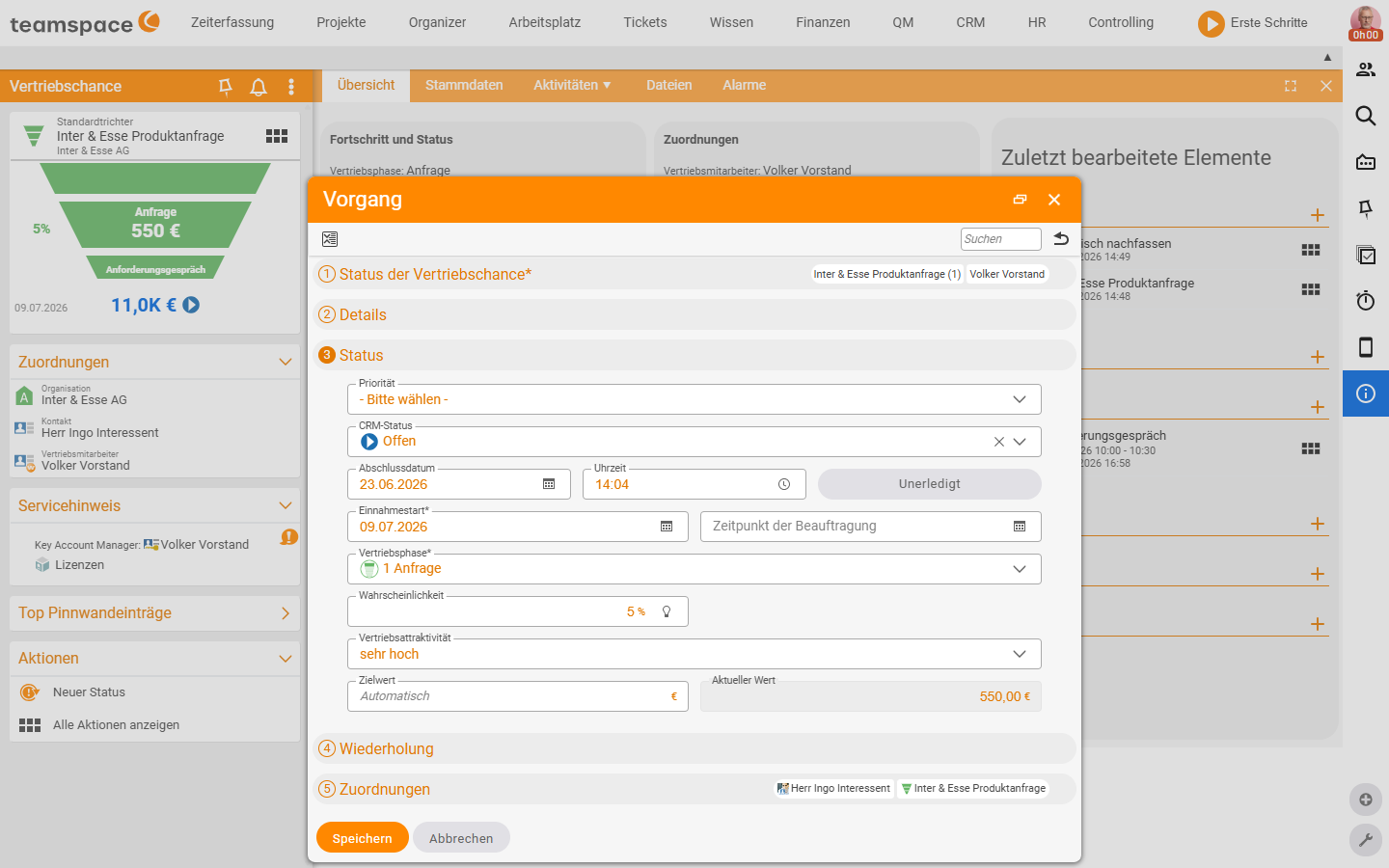
Step 4 – Recurrence. For activities that happen regularly (maintenance quotes, recurring enquiries).
Step 5 – Associations. The activity is automatically associated with the contact and the sales opportunity – shown as pills at the end of the dialog.
With Save you close the dialog. The activity appears in the opportunity’s timeline, the stage moves in the funnel, and probability and current value update.
⚠ Important: If you set the
CRM statustoOrdered, the opportunity counts as won – it drops out of the active pipeline filter. If you set it toOrderedby mistake, you reopen it through a secondNew statusactivity by setting the status back toOpen.
Keep stage and status cleanly apart
Do not confuse the Sales stage (where in the funnel) with the CRM status (whether the opportunity is alive). An opportunity in 3 Presentation with status Open is active; the same stage with status Ordered is won and stays in that stage. The model behind it is explained in Understanding the sales funnel, stage & CRM status.
Warning for prolonged inactivity
When nothing happens on one of your opportunities for a while, teamspace flags it – you see at a glance where a sales opportunity is stalling. The thresholds for this are set by an admin globally in the configuration, not per member of staff: under CRM → Settings, in the General section (verified live 2026-06-25), there are two text fields, each as a number of days:
Notice for long-untouched sales opportunities: after how many days without activity an opportunity is flagged as “stalled for a long time”.Warning for very long-untouched sales opportunities: after how many days the sharper warning applies.
The flag works in a similar way to the contact warnings in the sales opportunities overview.
My sales opportunities – your own list
Through the My sales opportunities tile in the Bookmarks area you see every opportunity where you are recorded as the Account manager – without having to filter out your colleagues’ records. The columns and sidebar are identical to the full list; the Statistics of filtered values accordingly shows only your figures. How to read these lists is described in Analyse sales opportunities.
Common questions & needs
| You want to … | How to |
|---|---|
| Document a call/meeting | New status → step 1: set Keyword and Date, optionally Contact type; with no stage change, simply leave the same Sales stage. |
| Move the opportunity to the next stage | New status → step 3: choose a new Sales stage – probability and current value follow automatically. |
| Mark an opportunity as won | New status → step 3: CRM status to Ordered, set Date of order. |
| Close an opportunity as lost | CRM status to Rejected (lost), or Junk data, Dormant, On hold depending on the reason. |
| Reactivate an accidentally ordered opportunity | New status again and set the CRM status back to Open. |
| Set the probability differently from the stage | In step 3 override the Probability value manually. |
| Know where an opportunity is stalling | In the configuration under CRM → Settings, set the fields Notice/Warning for (very) long-untouched sales opportunities (days). |
| Trace the history of an opportunity | Read the timeline in the Overview tab – every New status activity is listed there with date, stage and value. |