



In the ticketing system you collect, handle and monitor the communication from your day-to-day business — customer emails, job applications, error reports, internal queries. Every request gets its own number, all follow-up emails and notes are bundled under it, and you can see at a glance what is open and who is on it. Because time tracking, billing, CRM and project management all act directly on the ticket, the ticketing system is the central hub for internal and external communication in teamspace.
What a ticket is
A ticket bundles a matter or a task that needs to be completed or documented — a customer’s support request, a sales enquiry, a query to a colleague or an error report. The examples already show it: usually different people are responsible. That is why you sort tickets into ticket channels to which you assign responsible people — typically a support, a sales, a backend and a recruitment channel.
Every ticket carries:
- Number (ticket ID): unique per ticket. It appears in the subject of every email — when a customer replies, the answer automatically lands back in the same ticket.
- Activities: every email, every call, every note, every status change. A simple ticket has one question and one answer; a complex one has a great many activities.
- Status: where the ticket currently stands —
New,In progress,Answered,Successfully closed,Unsuccessfully closedin the standard workflow. - Channel: controls who sees the ticket and who is responsible for it.
- Owner and responsible person: the owner works on it, the responsible person watches from a little further away.
- Watchers: everyone who is notified about each new activity.
The structure in detail — detail manager, tabs and roles — is explained in Basics & operating concepts.
Three ways a ticket comes about
Tickets come about in three ways — the click path and the result differ, the rest works the same.
- Email ticket: a customer sends an email to your support address. teamspace automatically creates a ticket and matches the sender address to a contact in the CRM.
- Ticket from enquiry: the customer calls, you create a ticket on their behalf. When the handler replies later, the answer goes to the customer by email.
- Internal ticket: does not run over email, stays within teamspace — for bug reports, internal clarifications, tasks between colleagues.
On top of that there are two external ways for customers to create tickets themselves — a web service interface for your website and a dedicated login for customers with access. Which fields appear in the creation dialog and when each way fits is covered in Create tickets.
Ticket channels — the hub for responsibility and visibility
Tickets sit in channels, and the channel decides who sees them. A support, a sales and a recruitment channel are typical — but you create as many as you like, depending on how your team is split.
Per channel you set the subscription type: who is listed as Standard and is responsible by default, and who is only Informal and may look in without receiving notifications. Anyone in neither group does not see the tickets of that channel. The whole mechanism — subscriptions, watchers, owner and responsible person, activity visibility — is covered in Visibility & access.
What you do on the ticket
Day-to-day work takes place in the ticket detail manager. Using the actions at the top right you reply to an email, follow up on an outgoing message of your own, or split an activity off into a new ticket. Using the plus button in the history you create a new activity — the status change, the email to the customer, the internal note.
Three actions that are needed often:
- Log time. If the ticket is assigned to a project, you log the working time directly on the ticket — it lands on the project and on the ticket and can be billed straight away.
- Create a document. From the ticket you create a quote, an order confirmation or an invoice. The contact from the ticket is carried over automatically.
- Create a ticket project. When a single ticket is not enough, you turn it into a project — with its own progress, its own times, its own finances.
How you create activities, change the status, merge tickets and split activities off is covered in Work with tickets. How you record service times and bill them is covered in Record service time & bill tickets.
Lists and overviews
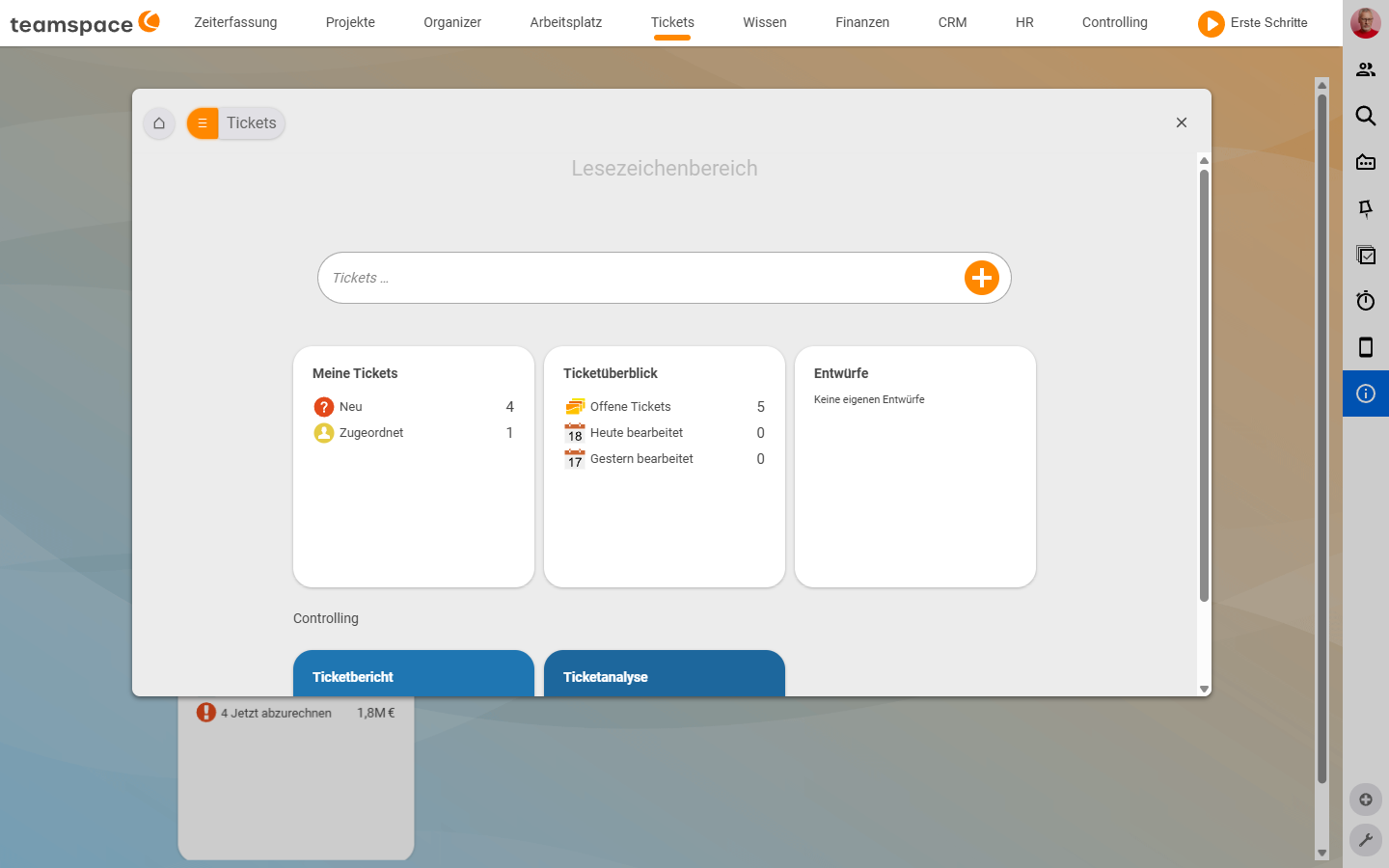
The module home page carries three lists:
- My tickets: everything you created yourself, where you are the owner, or that you subscribe to through your channel.
- Ticket overview: all tickets from all channels you have visibility into — including those a colleague is currently working on.
- Drafts: tickets you interrupted while writing and saved as a draft.
The left sidebar carries pre-filters such as Action required, No owner or Handled today. Which filters sit where and how you refine them is covered in Ticket lists & views.
Strength through integration
What ticketing systems are generally good at — bundling requests, documenting them, keeping an overview — teamspace does too. The difference comes from the integration with the other modules:
- Time tracking & billing: time entries on the ticket show the effort and can be billed directly.
- Project management: tickets can be attached to projects or turned into a ticket project of their own.
- SLAs & escalation: contractually agreed response times are monitored and shown by urgency via a traffic-light system; if a ticket gets out of hand, an escalation kicks in.
- CRM: every email to a known contact automatically lands in their file — when the customer calls, you immediately see their open requests.
- Controlling:
Ticket reportandTicket analysisshow the count, handler effort, dwell time and response time across all channels.
Three scenes from everyday work
The Schulz family sends an email to support. teamspace automatically creates a ticket in the support channel, matches the sender address to the CRM contact, and Tom Kraus, as a standard subscriber of the channel, receives a notification. He opens the ticket, replies — the email goes out, the status switches to
Answered.
Anna Müller takes a call: the customer wants a new quote. From the contact in the CRM she clicks the plus, chooses
New ticket from enquiry, writes two sentences and assigns it to Viktor Vertrieb as owner. Viktor receives the notification and writes the quote.
Tom Kraus stumbles across a bug. He creates an internal ticket in the backend channel, describes the problem, sets the owner to the developer. No email goes out — the ticket stays entirely internal.
Reminders and Outlook
If you don’t want to reply now but follow up in ten days, you set a ticket reminder on the ticket — see Use the ticket reminder. And anyone still receiving customer emails in Outlook can move them into the ticketing system with the Outlook add-in — see Use the Outlook add-in.
Related topics
- Basics & operating concepts (with video) Ticketing Concept
- Create tickets Ticketing How-to
- Visibility & access (with video) Ticketing Concept
- Set up ticket channels Ticketing Configuration
- Service desk software