


If you want to recharge costs to the customer – material, travel flat rates, hotel invoices – the Billable amount row of the Billing situation determines which amount is charged to the customer and where it comes from. The route runs via an order with matching items; from the order you then build an invoice that takes along all billable costs as items.
TODO-DONE · EXPENSE-T03 · CLAUDE
Done 2026-06-24:
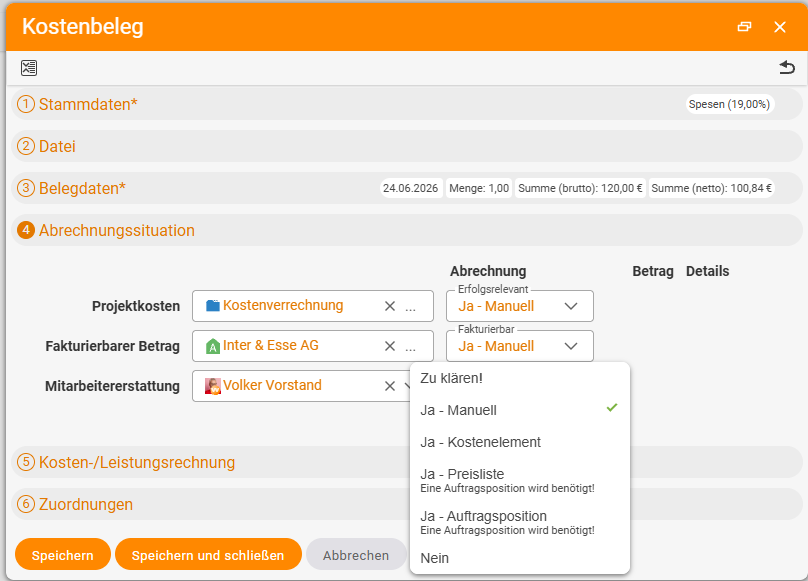
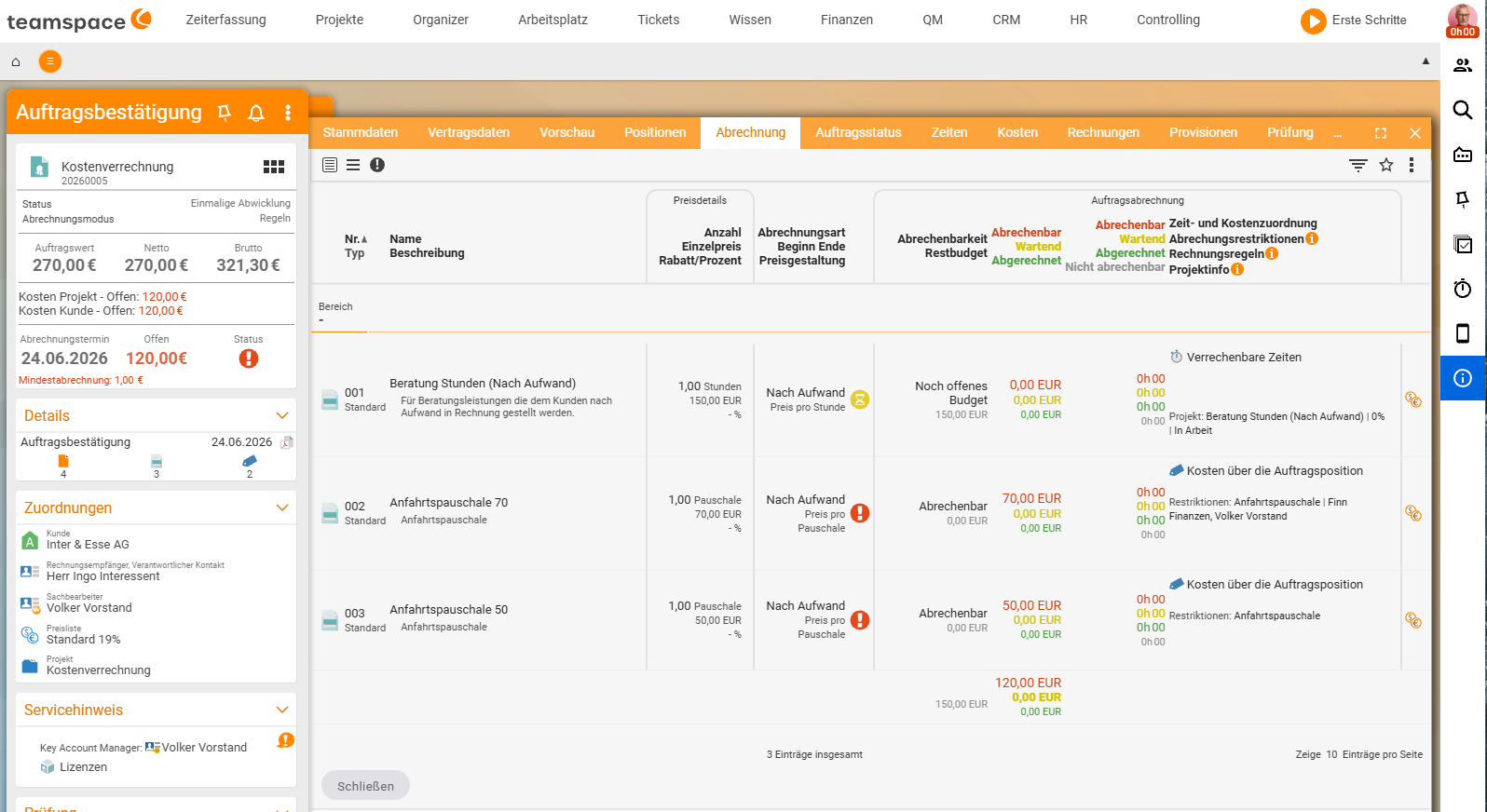
EXPENSE-14(order, “Billing” tab with all billable items + red “can be billed” markers),EXPENSE-15(cost breakdown as an invoice attachment with employee column) andEXPENSE-16(Billable-amount drop-down) captured. The multi-price example added two new screens:EXPENSE-19(order with two travel flat rates per employee) andEXPENSE-20(finished invoice with both flat rates). Documented wording: the Billable drop-down lists “Yes - Manual / Yes - Cost element / Yes - Price list / Yes - Order item” (plus “To clarify!”/“No”), not the short form cost element/manual/price list/order.
Four ways the price reaches the customer
In the Billable amount row you set where the price comes from. Four options – there are no more:
- cost element: the price that is in the document itself. A hotel night of €142 gross is billed at €142. The most honest variant: what I paid, you get invoiced.
- manual: you type the amount directly – handy for a manual mark-up or negotiated amounts.
- price list: pulls the price from the price list attached to the order. If the order has the
Standard 24price list andMaterialis listed there at €12.50, you bill €12.50 – regardless of what the actual procurement cost. Generally valid for all customers who share this price list. - order: the price is in the order item itself. If you’ve created a
Travel flat rateof €17.80 in the order, you bill every booked travel flat rate of this order at €17.80 – even if the master expense type provides for €50.
Which options a document type should offer is set in the configuration – see Set up cost types, supplements & document templates. If you don’t want to give an employee all four choices when creating, the cost type is pre-set with the permitted sources.
The order as a hub
The order holds the items that are billed against. In the project you book operationally (times, costs, material); when an invoice is created, the order looks at which of these operational items match which of its items. An order gets items for everything that is to be billed – e.g.:
- Consulting by effort with an hourly rate,
- Training with a fixed price,
- Travel flat rate with a price from the order (e.g. €17.80) and a quantity (e.g. 5 units),
- Expenses pot with a budget (e.g. €500) – catches everything that arises in hotel, meals and documents.
From this you make a project. If you book a travel flat rate in the project, it automatically assigns itself to the Travel flat rate order item; an expenses expense invoice is collected by the expenses pot.
Recommended vs. not recommended
Recommended: via the order. You go into the order, create the order confirmation, click Create invoice – teamspace pulls all billable cost items that dock onto matching order items and creates an invoice with the correct amounts.
Not recommended: create an invoice directly in the project. In theory this works via New document → Invoice. The invoice is then empty, you’d have to create every item manually and assign cost elements in the Costs tab via multi-select – laborious, error-prone, and you have to remember open costs yourself. Via the order this happens automatically.
Conflict case – no matching item
If you set a cost item to Billable amount → as per order, an item with the matching expense type must exist in the order. If it’s missing, the order reports in the Costs tab, in effect: documents are billable, but no matching item found. The fix: either create an item in the order that takes this expense type – or switch the Billing situation to cost element, then a collective pot is enough.
Collective pots and inheritance
An order item can act as a collective pot for several expense types. In the rule-based billing item accordion you set which source types it may collect – manual, as per cost element, as per price list. A material item that only collects cost element and price list refuses an order-bound travel flat rate and passes it on to the next matching item.
This inheritance runs from bottom to top: individual subproject items are checked first, then the higher-level ones. A broad expenses pot in the main project catches last what matched no other item.
⚠ Restrictions per item can also run by employee – e.g. a pot that only collects travel flat rates from Tom Kraus. If you restrict pots, make sure that for every document type and every employee there is a landing item. Otherwise some documents find no item.
Multi-price example
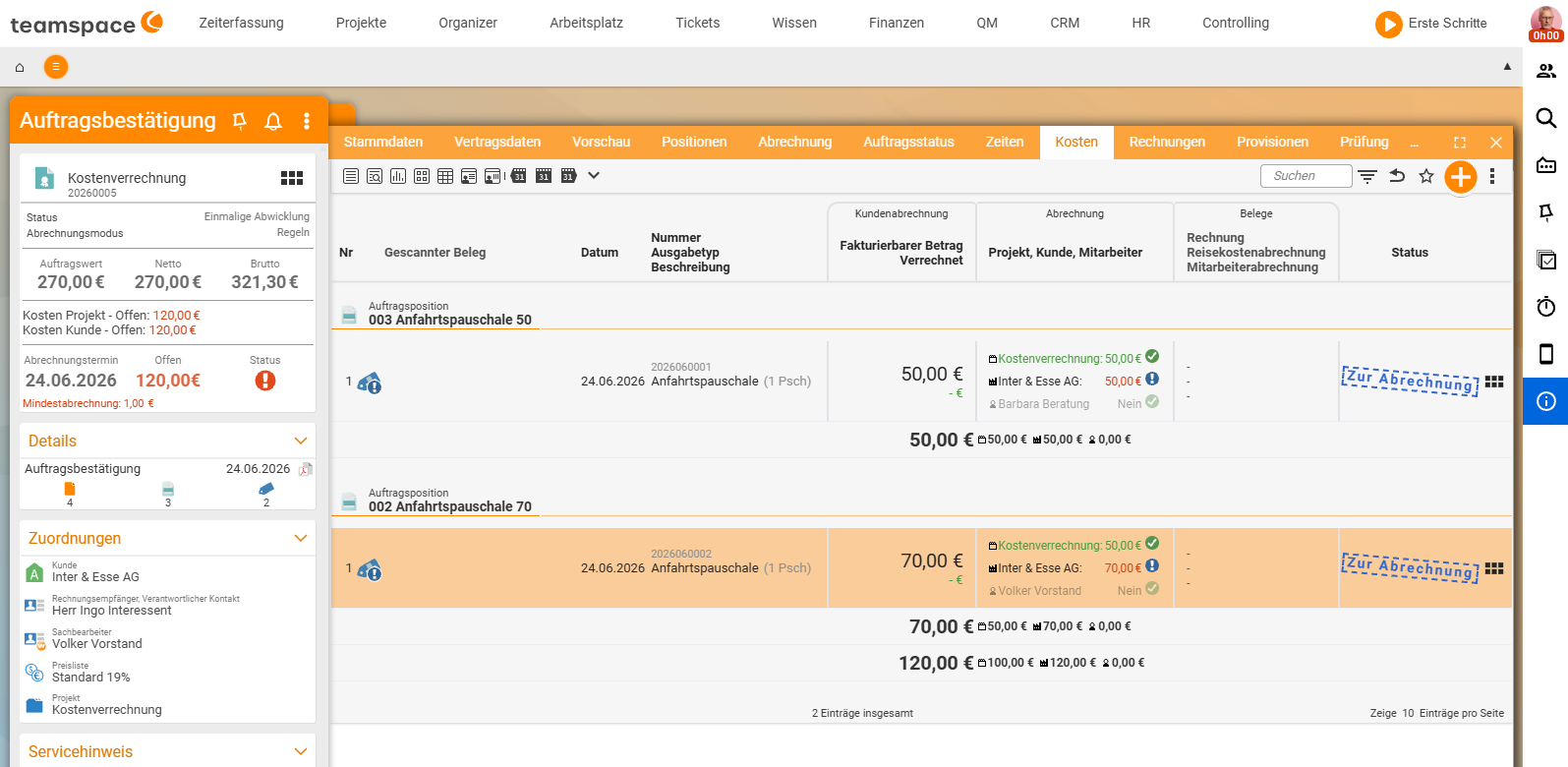
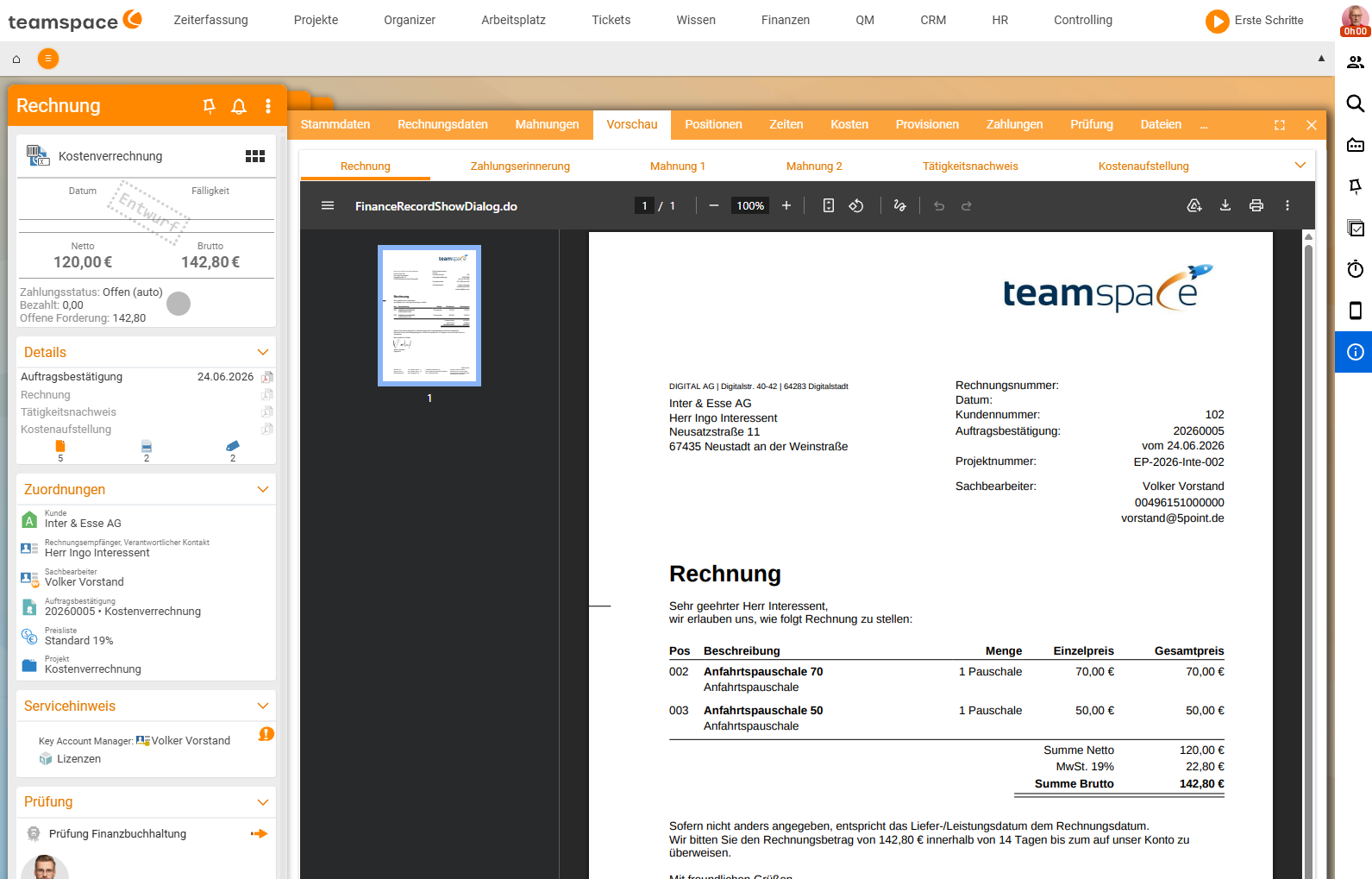
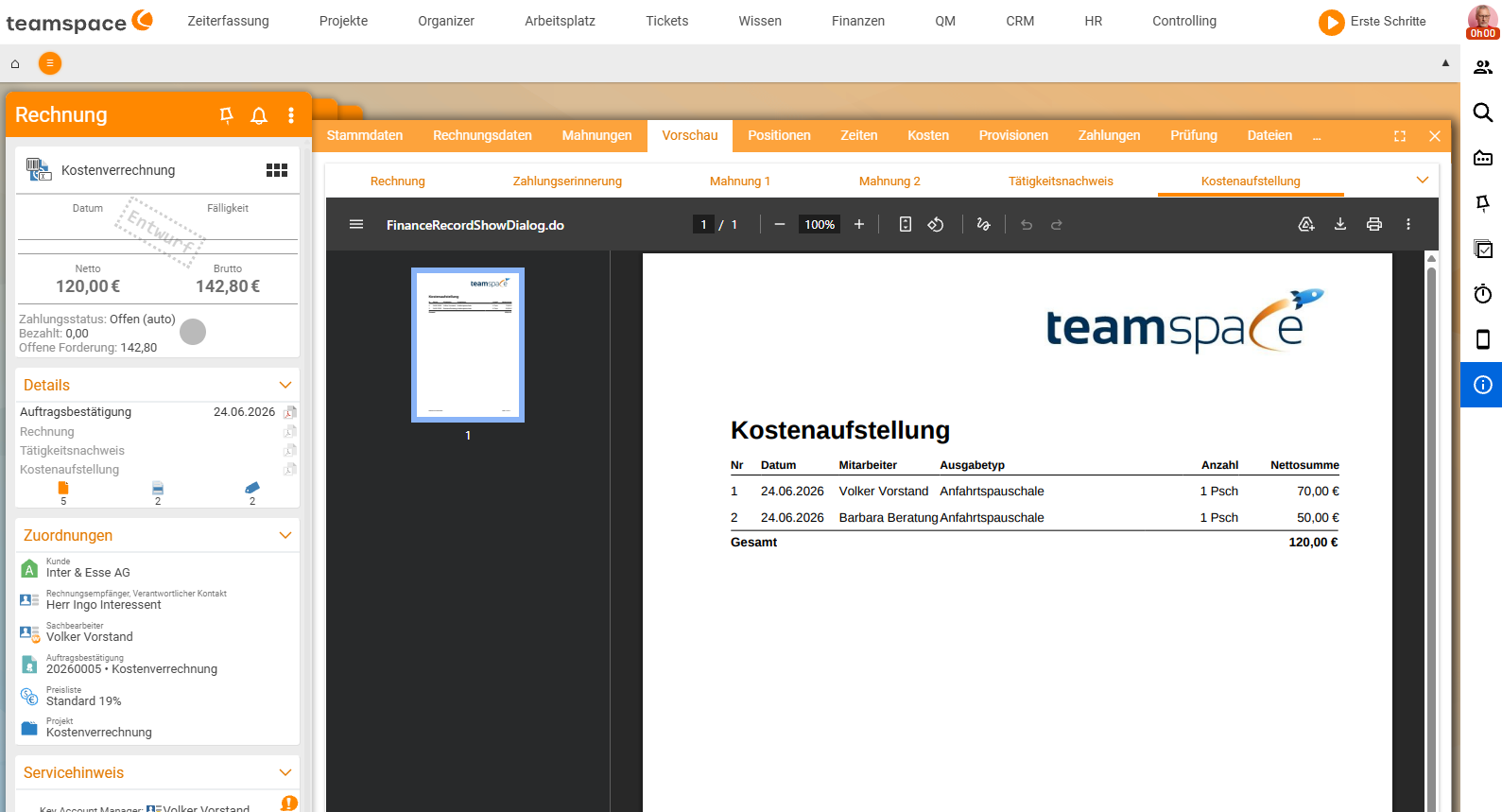
You want: if Anna Müller travels, the travel flat rate costs €50; if Volker Vorstand travels, €70. You create two travel-flat-rate items in the order, restrict the first to Anna and the second to Volker (the item’s employee filter), both via Billable amount → as per order. A flat rate from Anna finds the €50 item, one from Volker the €70 item. On the invoice both appear with the correct amounts in a cost breakdown with an employee column.
The cost statement on the invoice
In the invoice preview you see every billable cost item. In the Layout accordion of the invoice detail manager (letterhead) you activate the cost breakdown – then teamspace adds an attachment with the date, description and amount of every billed document. You can pre-set the cost statement once in the document template, so you don’t have to remember it for every invoice.
When items disappear from the order
An order item that is meant to bill costs has to be visible in the order’s Billing tab. If you accidentally drag it out when restructuring, the order no longer knows that cost elements of this expense type run through it – the item later shows up as unbillable. Reflex: after order changes, check the Billing tab once to see whether all cost-collecting items are listed.
Common questions & needs
| You want to … | How to |
|---|---|
| Bill exactly what you paid | Billable amount → as per cost element. |
| Set a mark-up by hand | as per manual and type the amount. |
| A uniform price for all customers | as per price list – price comes from the order’s price list. |
| An order-specific flat price | as per order + matching order item with the price. |
| Different prices per employee | Create several order items with an employee restriction. |
| Send the customer a cost breakdown | Activate Cost breakdown in the layout (or pre-set it in the document template). |
| Fix the “document finds no item” error | Create a matching item in the order or set the source to cost element. |
| Generate flat rates automatically from times | Via cost rules – see Generate flat rates automatically with rules. |