


In the document overview you see all documents in the module in one list – quotes, order confirmations, invoices, invoice corrections, letters, incoming documents. If you have the necessary rights, you also see your colleagues’ documents. From here you filter by status, search by document number or contact and open a document with a click – almost all of Invoicing runs from here. My documents is the same list, filtered to your own documents.
This article explains the mental model: how a document runs through its lifecycle and who may see it. How you set up templates, approvals and commissions is covered in Document templates, approvals & commissions.
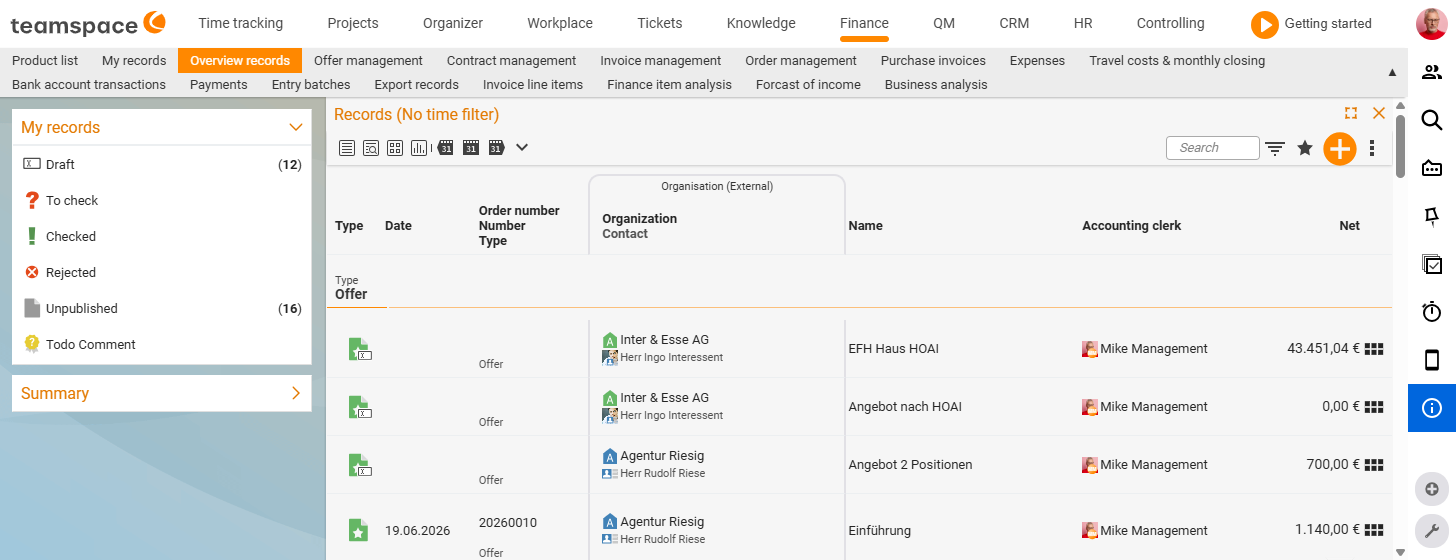
Three statuses, three stages
A document lives in one of three statuses:
Draft– freshly created. You change line items, document data, addresses – everything open. Dispatch is not possible, and the document does not yet have a final document number. The status appears at the top left of the detail manager.- Validated – closed via the action Validate quote or Validate invoice (generically “Validate <document type>”, verified live 25 June 2026). The PDF is generated, the document number fixed, and line items and document data can no longer be changed. The document may go out to the customer.
- Archived – tidied away via Archive document. Out of the active list, still visible in reports and analyses. Use the filters to show archived documents again; to bring one back, use Retrieve document from archive.
If you do need a change on a validated document after all, use Activate editing mode to set it back to draft. The document number is retained, and the data becomes open again.
Document rights – three access modes
Invoicing is a sensitive area. Visibility depends on three levels that work together:
- Base right – whether the user may see, create or validate documents at all. Can be restricted per document type: quotes yes, invoices no.
- Project right – whoever works on the project that a document is attached to sees the document through the project role.
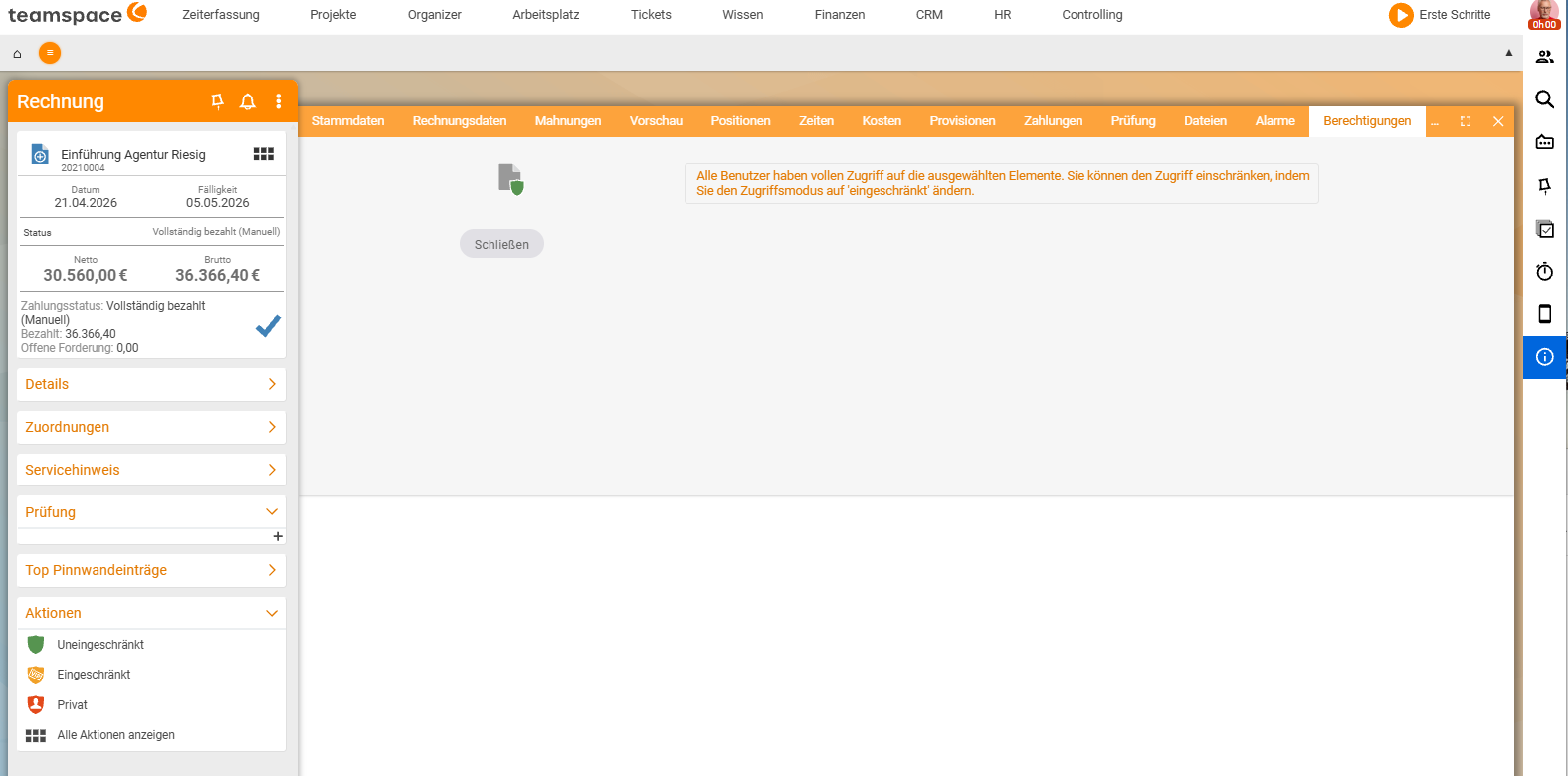
- Document right – set directly on the individual document, on the
Permissionstab.
Document rights know three modes:
Unrestricted– all users with the base right have full access. Other rights may not restrict access any further.Restricted– access set per employee; for each employee you chooseRead,WriteorFull access.Private– only the creator sees the document.
Document rights can be maintained in advance in the document templates – a new document created from that template inherits the rights automatically.
Specialised lists around the document overview
Besides the Document overview, Invoicing has lists that each show one document type in detail – with their own filters and columns:
Quote trackingfor quotes, filtered byDraft,Open,Action required,Rejected,Ordered.Order billingfor orders, filtered byDraft,Ongoing contracts,Waiting,To bill now.Invoice managementandCredit controlfor invoices, filtered by payment status.Incoming documentsfor purchase orders, expenses and incoming letters.
There you reach the document-type-specific filters more quickly. Anyone who wants everything at a glance – regardless of type – stays in the Document overview.
Checking and approving documents
If a document is to be checked internally before dispatch, you attach an approval workflow to the document type. With an active workflow, the employee cannot validate the document themselves – they submit it for review. The designated reviewer receives a notification, approves or rejects it; only then does the document move to the next stage. The setup is in Document templates, approvals & commissions.
Common questions & needs
| You want to … | How to |
|---|---|
| Correct something on an already dispatched document | Activate editing mode – document number stays, data becomes open. For invoices, possibly use an invoice correction instead. |
| Lock a document even from myself / show it only to me | Document right Private on the Permissions tab. |
| Make invoices invisible to certain colleagues | Restrict the base right per document type (quotes yes, invoices no). |
| Only let documents out after a four-eyes review | Approval workflow on the document type – see Document templates, approvals & commissions. |
| Tidy old documents out of the list but keep them in the report | Archive document; show them again via the filters. |
Related topics
- Document templates, approvals & commissions Invoicing Configuration
- Issue invoices and record payments Invoicing How-to
- Topic: Permissions Permissions