


Quality management (QM) in teamspace is not a separate module with its own interface, but a well-rehearsed interplay of existing building blocks. The focus is not on audits and bureaucracy, but on creating good documents easily, recording processes and finding everything again: you describe workflows, create documents from suitable templates, take a concept step by step to a project proposal and embed real teamspace elements such as open items or work packages along the way.
ℹ Two names, one module. We use two labels for the same module: QM or quality management and LiveDocs. In everyday use we mostly say QM. The name LiveDocs came about because QM documents can also fill themselves with live data from the project – this makes status reports, for example, extremely simple, because they pull current figures and elements straight from the project instead of being typed out.
ℹ Note. QM bundles functions from the topics File management, Wiki, Open items, Project management and Permissions. This topic area shows them from the QM perspective; the detailed operating steps are in the respective source topic, which is linked here.
What QM in teamspace is good for
- Document processes: workflows and work instructions are held centrally, linked and current – not in people’s heads or in scattered files.
- Create documents faster: for every QM document type there is a template – you don’t start with a blank page, but with the right structure.
- Develop a concept further: an Idea becomes a Proposal, then an Approval, a Status report, an Acceptance – the document lifecycle is mapped out.
- Fill minutes & status reports with content: you embed real elements – e.g. open items and work packages – instead of typing them out.
- Find documents again: through structure, file classes and search you find any document again in seconds.
A reviewed, approved version and the versioning are supporting mechanics here – useful, but not the purpose.
The building blocks
-
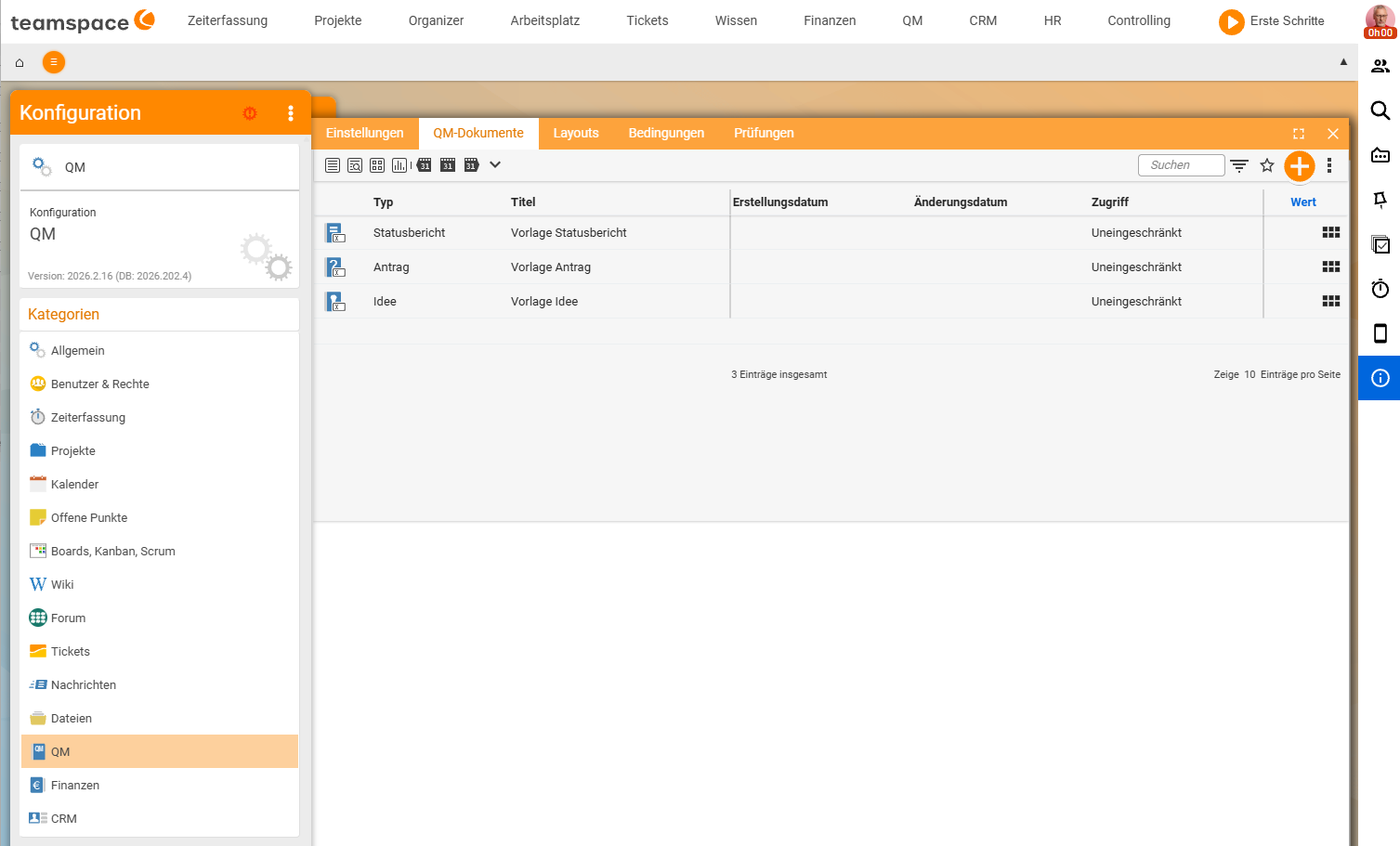
Templates for QM documents. Idea, Proposal, Approval, Status report, Acceptance, Task list, Process description, Work instruction, Project gate. What each template does is described in QM document templates at a glance.
-
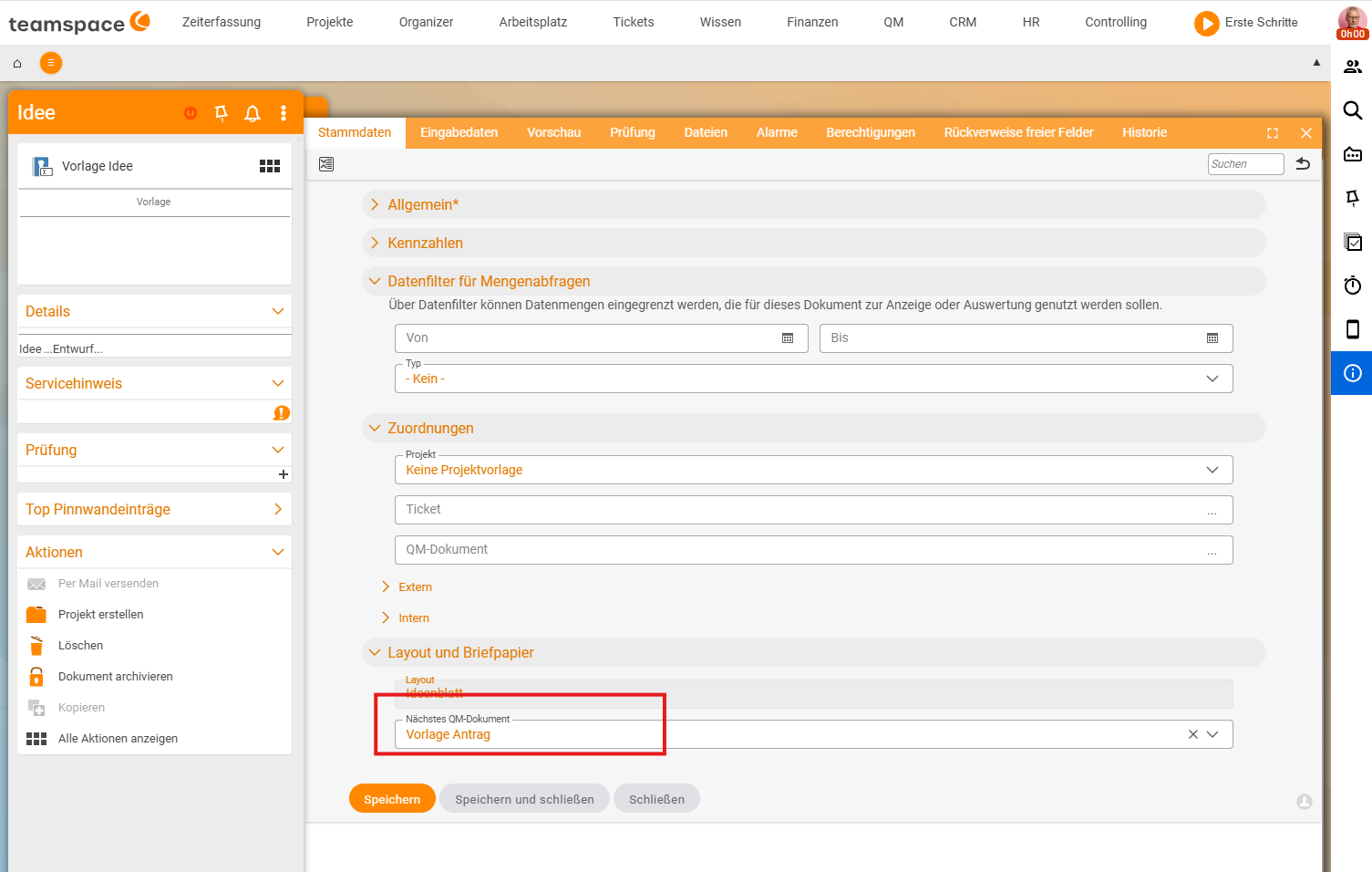
The document lifecycle. How a concept becomes a project proposal and finally an approval is shown in Understand document management: from concept to approved document.
-
Processes in the wiki. Process descriptions and work instructions as linked, living wiki pages – see Document processes & work instructions.
-
Minutes & status reports with elements. Embed open items, work packages and other elements directly into minutes and status reports – see Minutes & status reports with teamspace elements.
-
Finding again. Structure, file classes and search – see Structure and find documents.
Where your QM documents are stored
Controlled documents are stored like all files in file management – usually in a dedicated directory with suitable permissions. Internally, teamspace keeps the documents created from QM templates as LiveDocs; “LiveDocs” and “QM documents” therefore mean the same thing. Process descriptions are stored in the wiki. There is no separate “QM area”; you recognise QM documents by their template, their location and – where needed – their approval status.
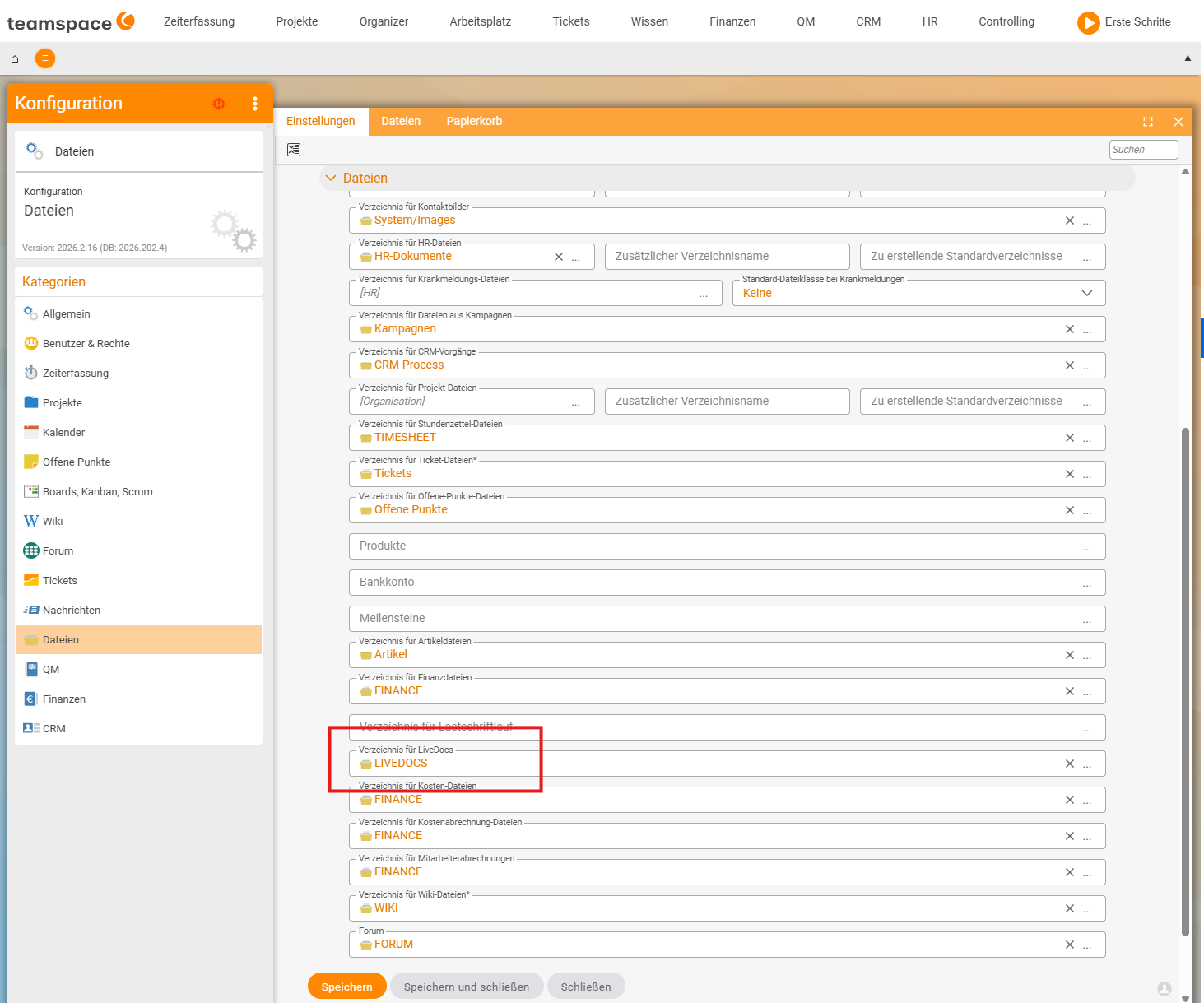
Note: Where the QM documents are stored in your installation and which templates are available is determined by the administrator – see Set up document management. The menu in teamspace is fully configurable.
How to get started
- Understand first: Understand document management: from concept to approved document.
- Then join in: Exercise: from idea to project proposal.
- Look things up day to day: QM document templates at a glance.