


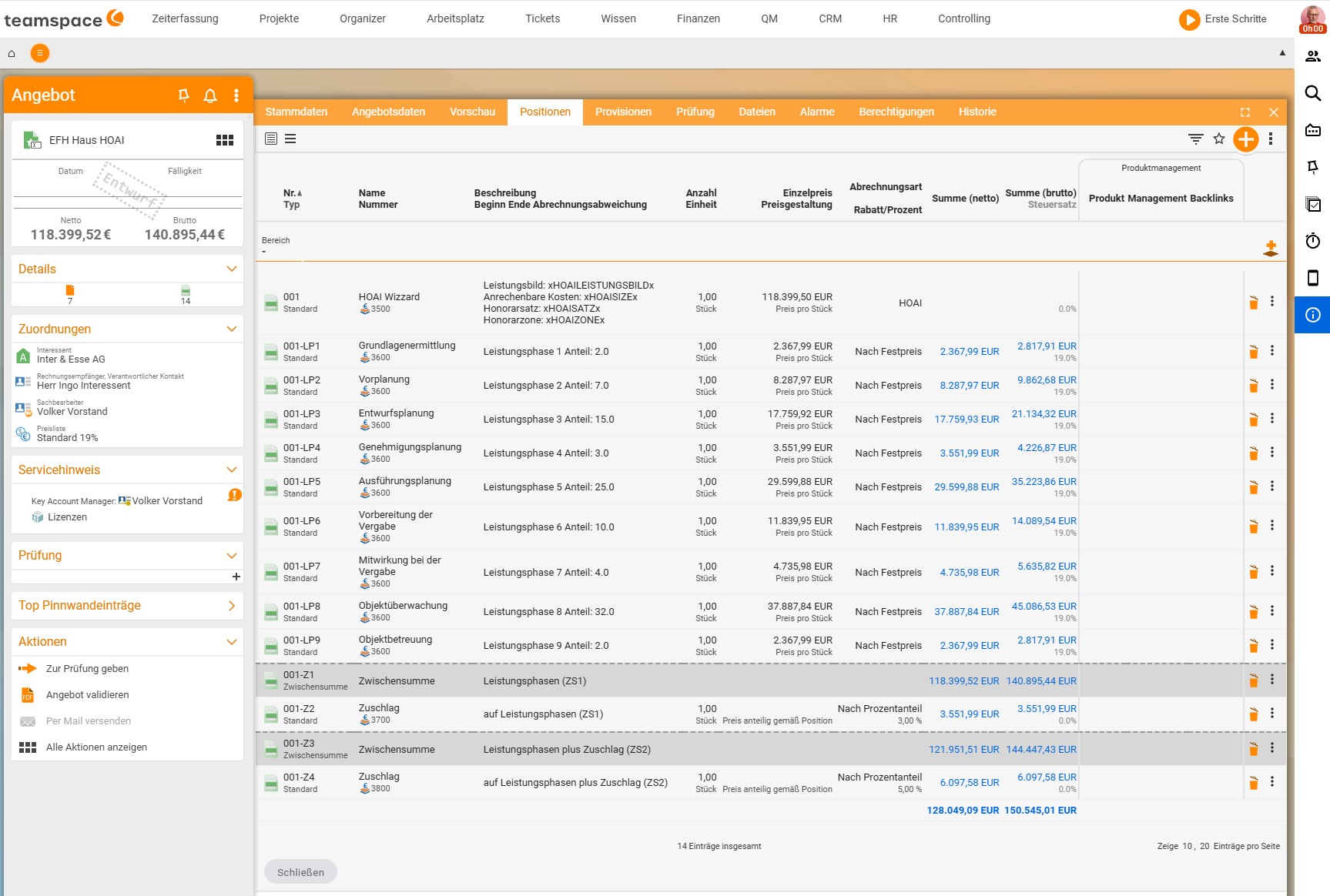
The HOAI fee scale (German scale of fees for architects and engineers) defines nine work phases, each with a percentage share of the total fee. You no longer have to build this structure by hand in teamspace: the HOAI wizard takes care of it. You insert it as one line item in your quote, enter the framework conditions (version, work-package, fee zone, fee rate and eligible construction costs) – and teamspace calculates the fee and creates all nine work phases as sub-items.
An HOAI fee in three steps
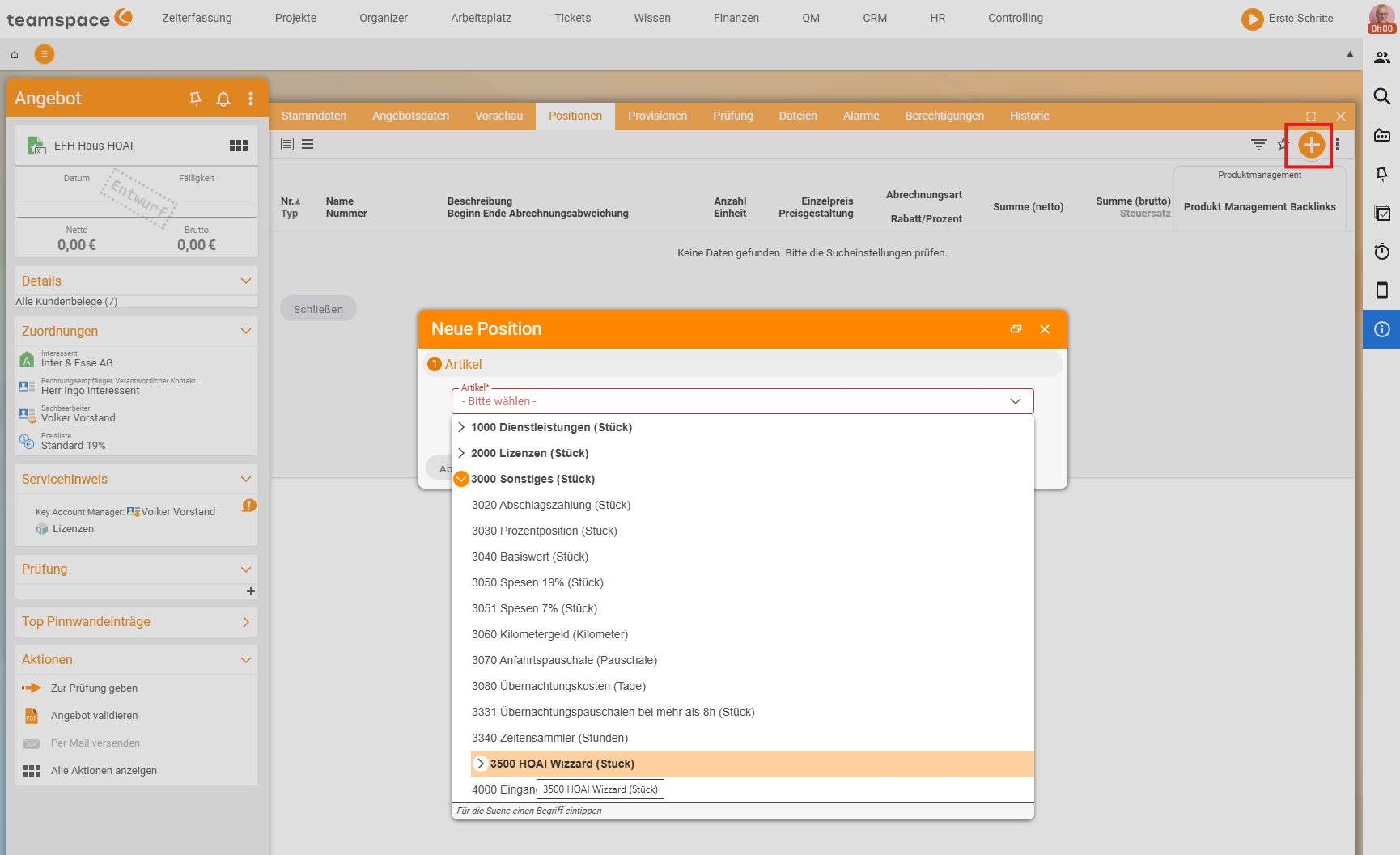
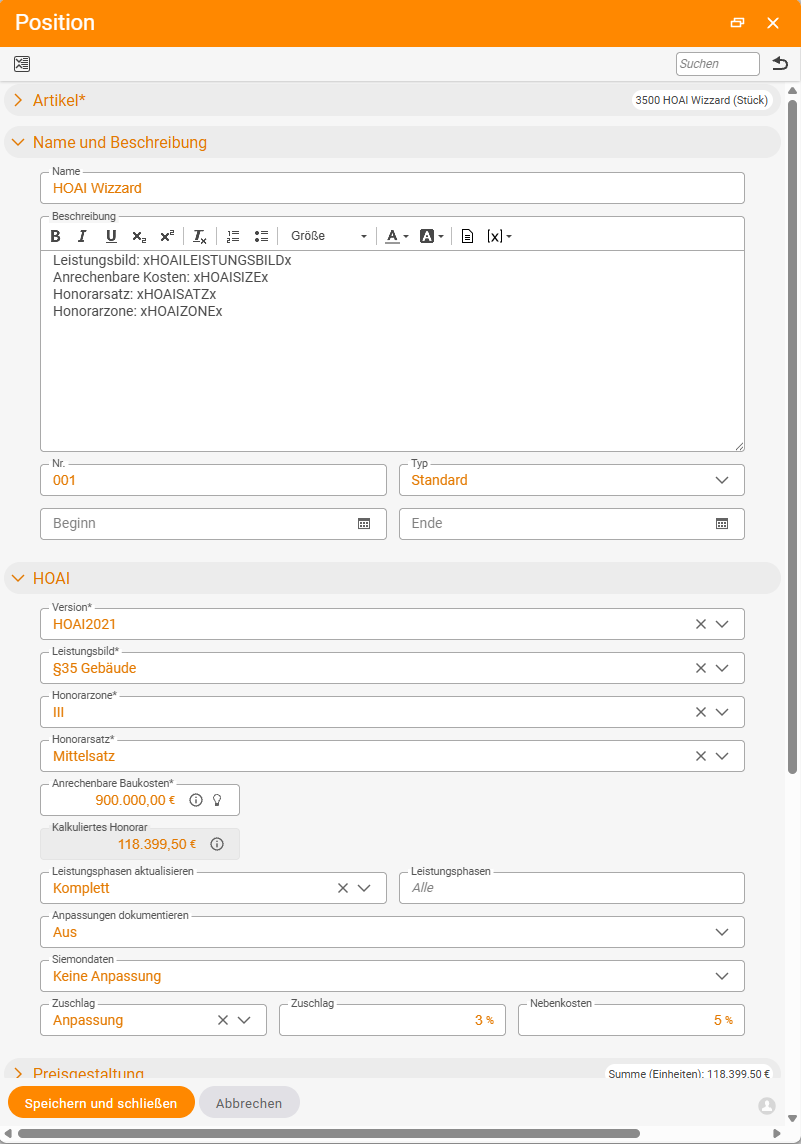
Step 2 in detail – the framework conditions
In the HOAI accordion of the wizard line item, you set what is calculated against. teamspace updates the Calculated fee with every change:
Version– the HOAI version, e.g.HOAI2021.Work-package– e.g.§35 Buildings(others such as Open spaces, Engineering structures depending on the configuration).Fee zone– the difficulty level, e.g.III.Fee rate– e.g.Mid rate(alternatively minimum/maximum rate).Eligible construction costs– the assessment basis, e.g.€900,000.00.
Optionally below: Surcharge and Ancillary costs as percentage values (e.g. 3% surcharge, 5% ancillary costs), and, via Update work phases (Complete), which phases the wizard recalculates. The Calculated fee is the result of the fee table, zone and rate – in the example €118,399.50.
ℹ The HOAI mechanism sits in the wizard. Which percentages apply per work phase follows from the version, work-package, fee zone and rate – the wizard looks them up and distributes the fee. A common starting point for building design:
| Work phase | Share |
|---|---|
| 1 Basic evaluation | 2% |
| 2 Preliminary design | 7% |
| 3 Design planning | 15% |
| 4 Approval planning | 3% |
| 5 Detailed design | 25% |
| 6 Preparation of the award | 10% |
| 7 Participation in the award | 4% |
| 8 Construction supervision | 32% |
| 9 Project aftercare | 2% |
Several buildings in one quote
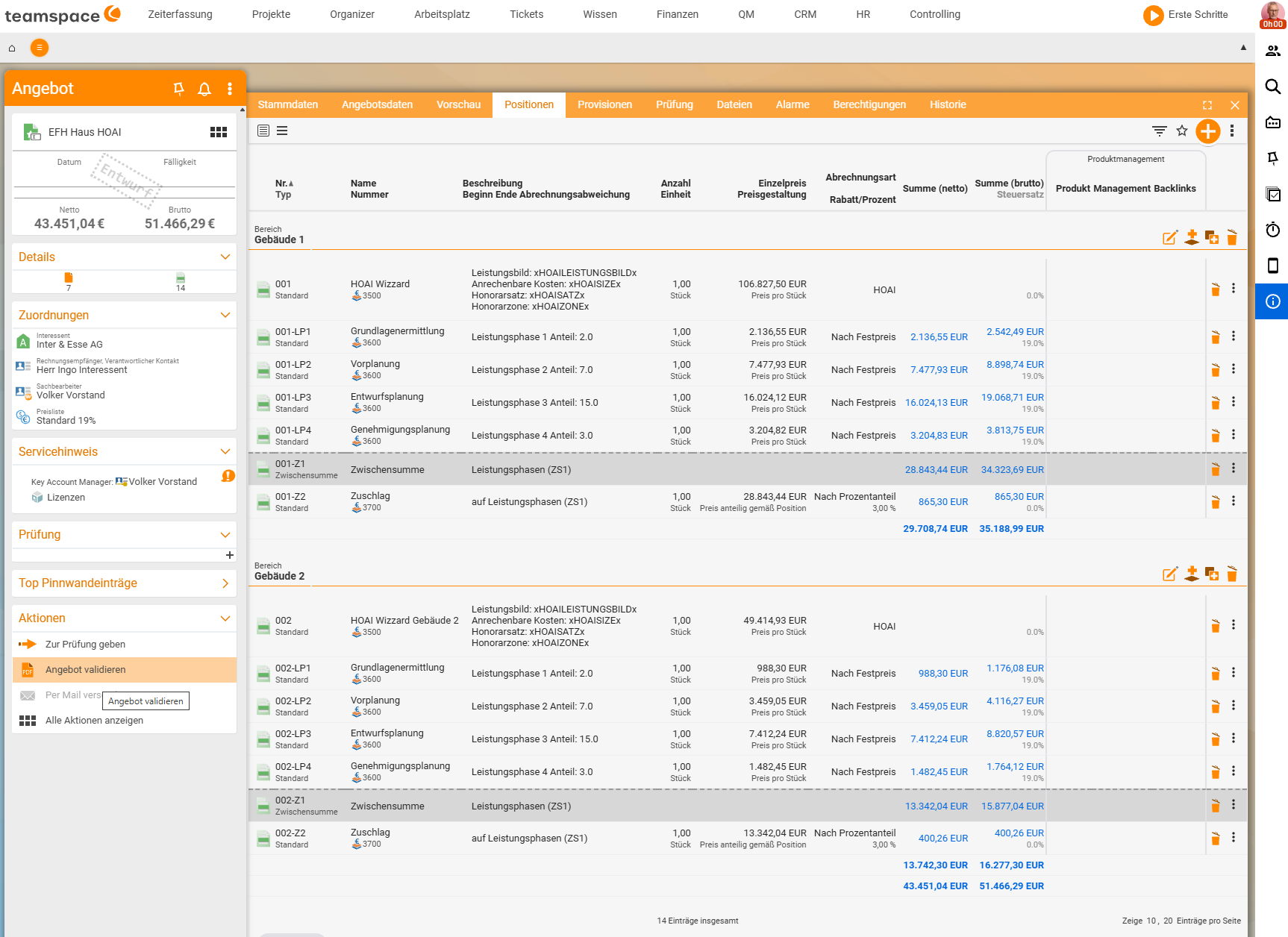
Each wizard stands for one building project. If you want to offer several buildings in a single quote, you simply insert several HOAI wizard line items – each with its own version, zone, rate and construction costs. The work phases of each wizard are kept separately under “its” line item (e.g. 001-LP… and 002-LP…), so that the fees are cleanly shown per building.
Bill phase by phase
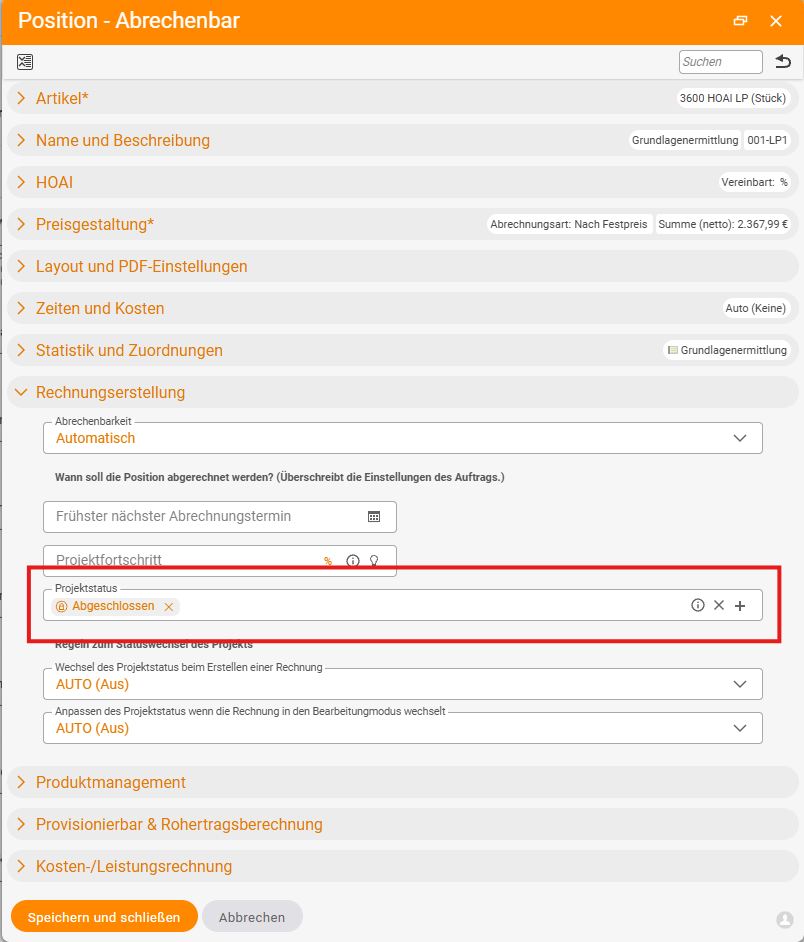
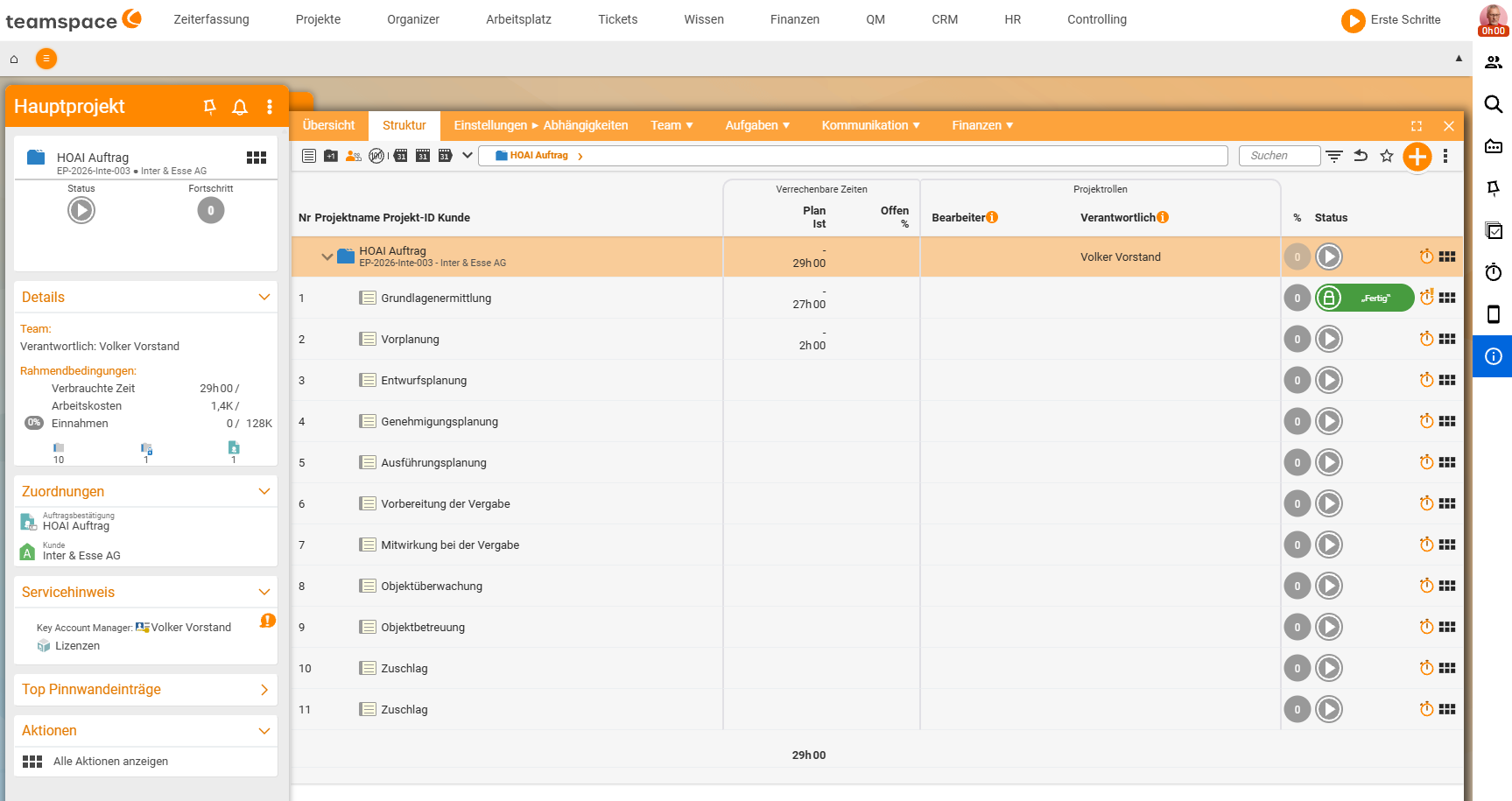
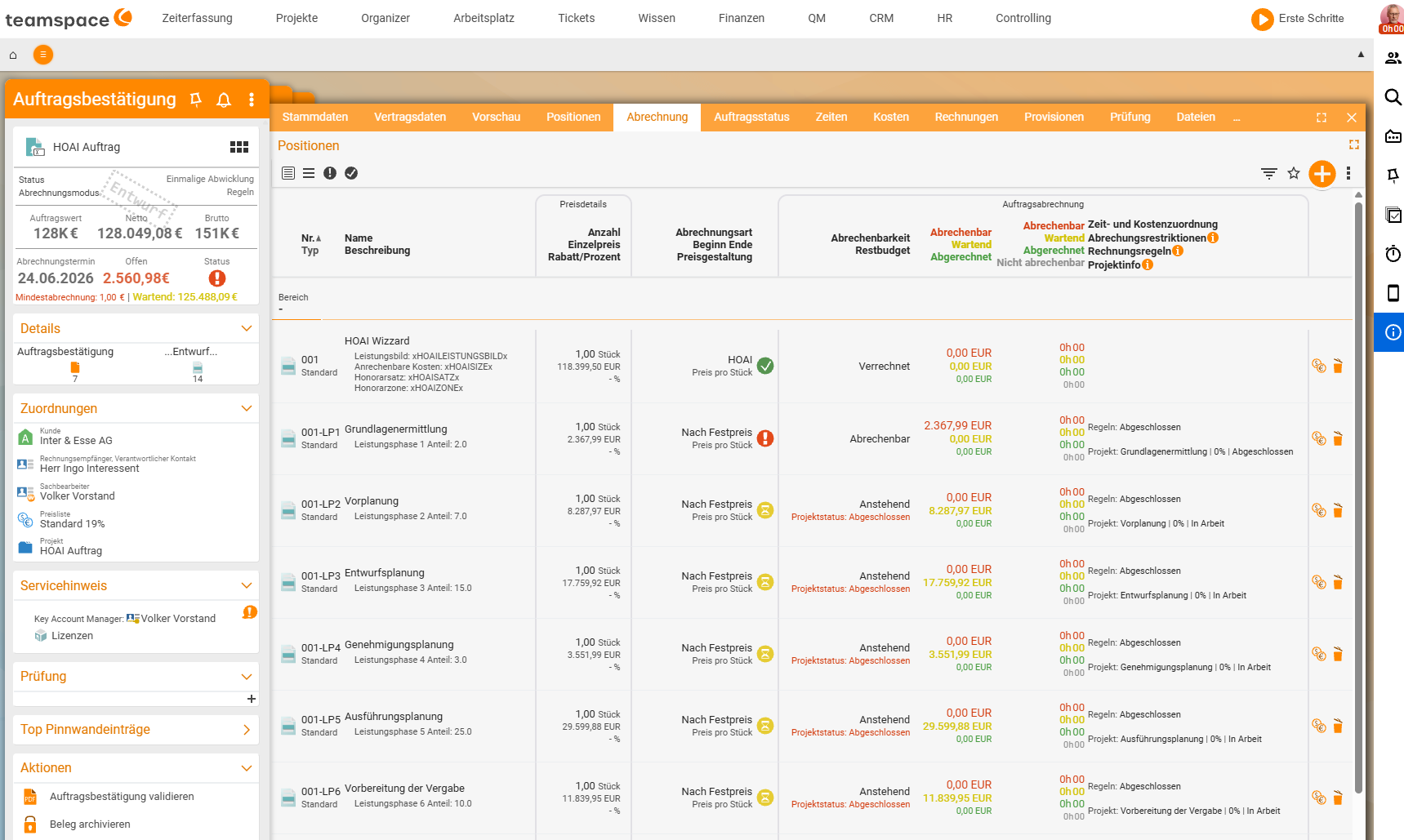
In day-to-day work, you bill the work phases individually – usually by project progress or status change. To do this, you open the individual work phase (the Billable line item) and, in the Invoice creation accordion under Billability: Automatic, set the Project status or Project progress criterion. Only once the phase reaches the chosen status (e.g. Completed) does it become billable. This way, the phases flow cleanly into the partial invoices – see the Payment plan or Rules mode in Create and bill orders.
One-off setup (configuration)
For the wizard to work, the HOAI articles must be stored – you set this up once, after which all quotes use the same wizard.
- Store the HOAI articles.
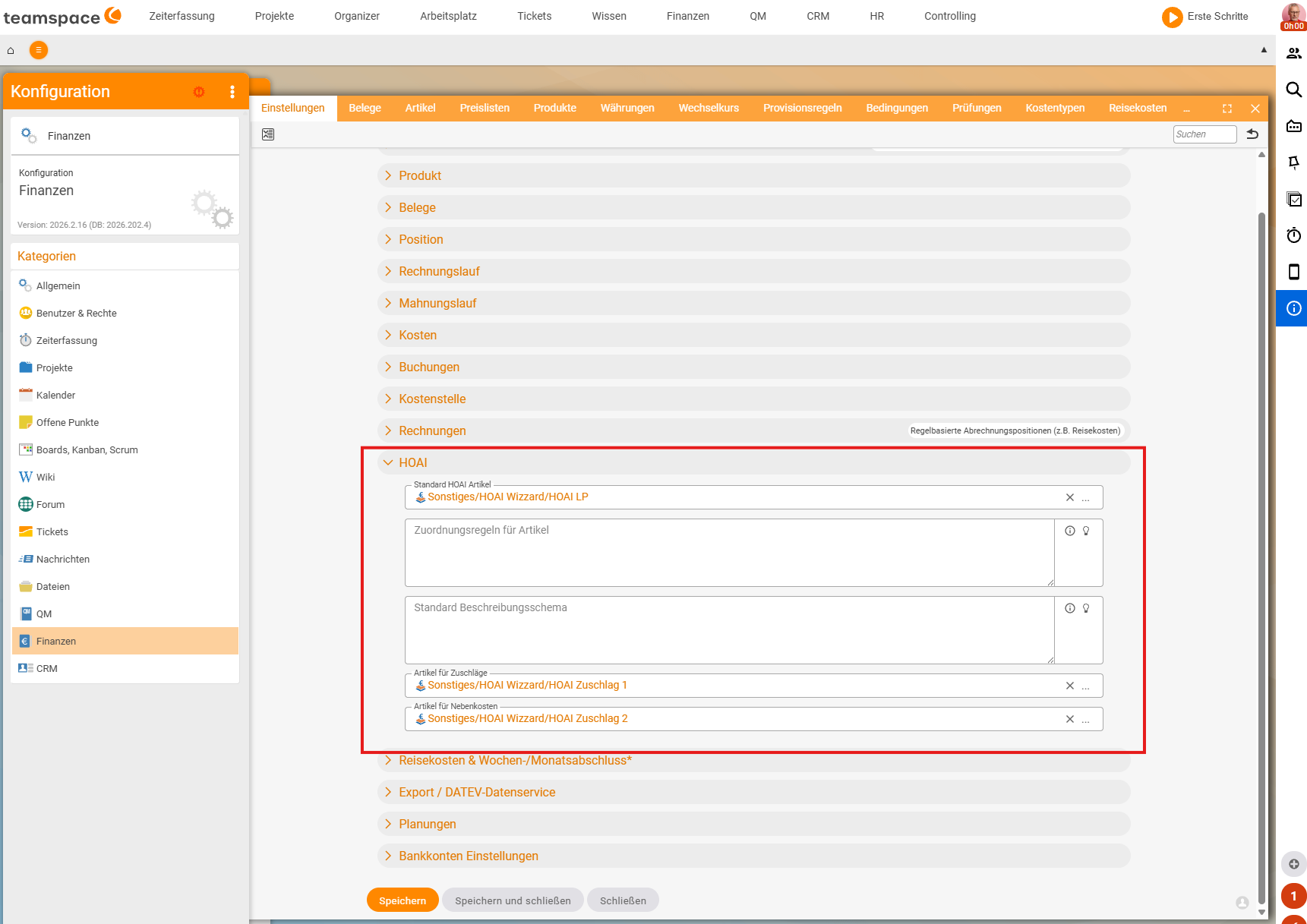
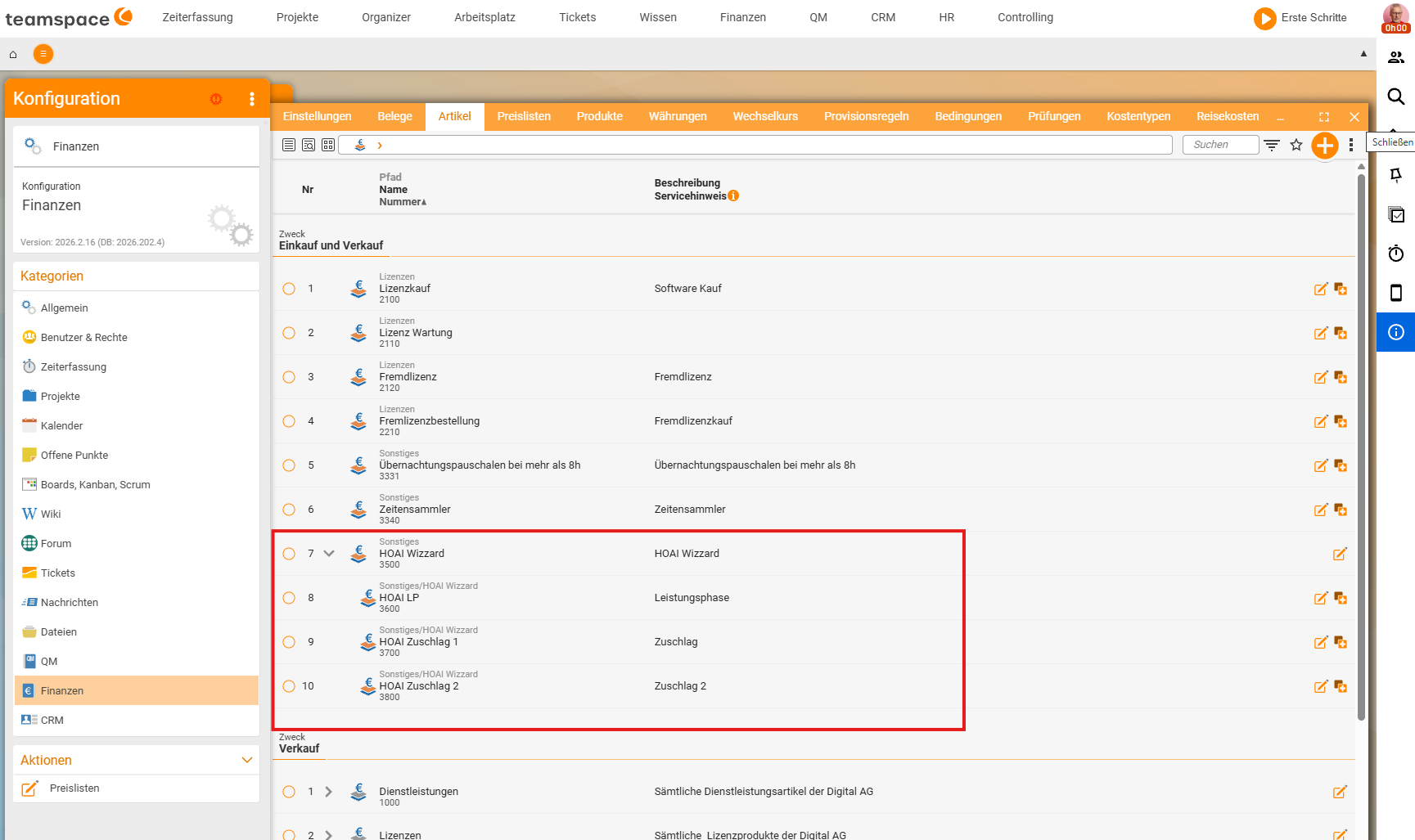
Configuration → Finance → Settings, theHOAIaccordion: underDefault HOAI article, enter the wizard/work-phase article (HOAI Wizzard/HOAI LP), plus theArticle for surchargesandArticle for ancillary costs. Optionally aDefault description schemefor the generated line items. - Check the articles. Under
Configuration → Finance → Articleslie the associated articles –HOAI Wizzard, the work-phase article and the surcharge articles. If one is missing, you create it here.
Common problems
Why can’t I find the HOAI Wizzard in the article selection?
The HOAI articles aren’t stored yet. In Configuration → Finance → Settings, the HOAI accordion, enter the wizard and work-phase article under Default HOAI article – plus the articles for surcharges and ancillary costs. If an article is missing entirely, create it under Configuration → Finance → Articles.
How do I offer several buildings in one quote?
Simply insert several HOAI wizard line items – each with its own version, fee zone, rate and construction costs. The work phases are kept separately per wizard (001-LP…, 002-LP…), so the fees are shown cleanly per building.
Why isn’t a work phase billable yet?
It’s waiting for its criterion. Open the work phase (line item Billable), and in the Invoice creation accordion under Billability: Automatic, set the Project status or Project progress criterion – only once the phase reaches the chosen status (e.g. Completed) does it become billable.
Common questions & needs
| You want to … | How to |
|---|---|
| Have an HOAI fee calculated | Insert a wizard line item, set the framework conditions in the HOAI accordion. |
| Show several buildings separately | Several wizard line items, each with its own framework conditions. |
| Bill work phases individually | On the phase, Billability: Automatic + the Project status/Project progress criterion. |
| Add surcharge and ancillary costs | The Surcharge/Ancillary costs fields (in %) in the HOAI accordion. |
| Set up the wizard once | Configuration → Finance → Settings → HOAI: store the default articles. |
Related topics
- The six billing methods (with video) Invoicing Concept
- Create and bill orders Invoicing How-to
- HOAI fees & work phases · HOAI calculator