


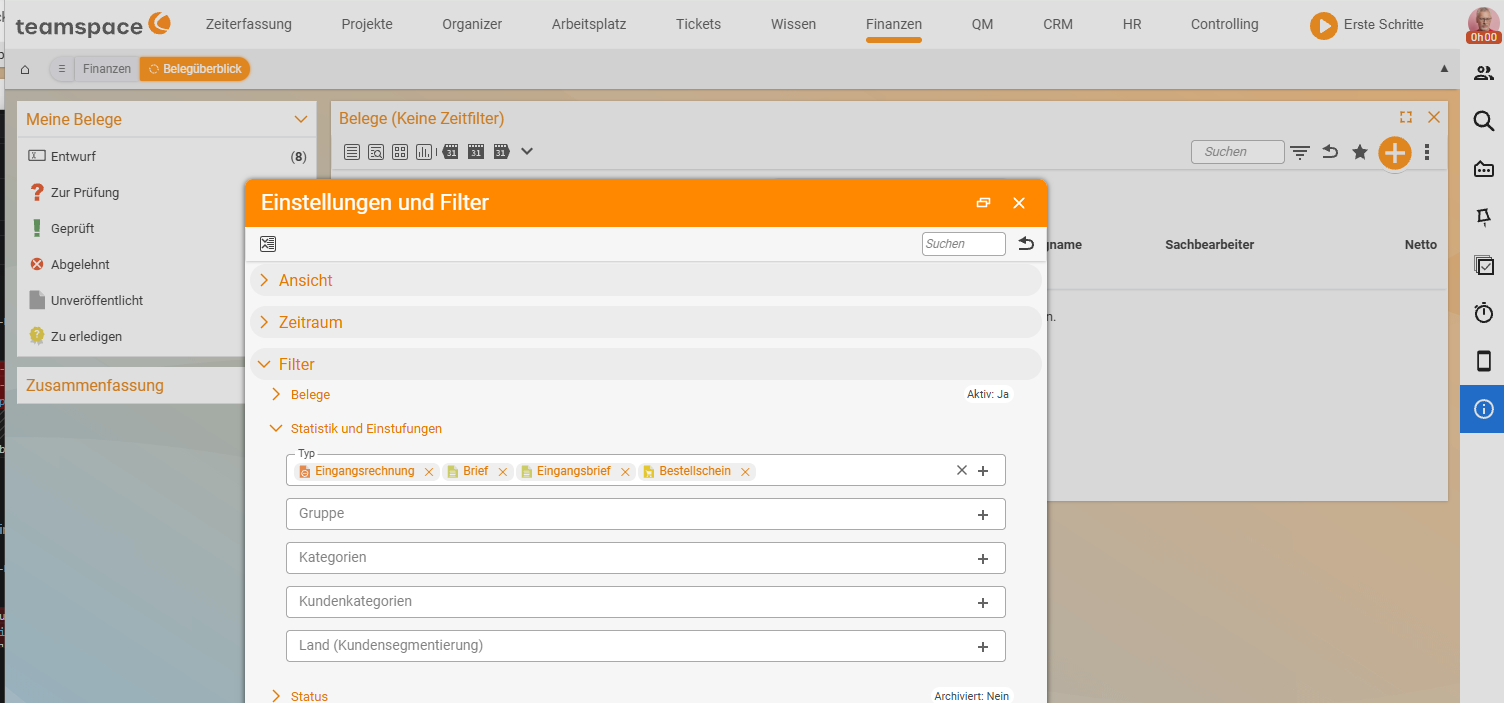
Incoming documents are everything that comes into the house – purchase orders with your suppliers, expense invoices, incoming letters. You create them in the Document overview or have them generated from an incoming email. teamspace separates three types so that accounting and sales run cleanly.
Three types
Purchase orders– the counterpart to your orders, just the other way round: the binding order placed with the supplier. Carries line items, contract and delivery information.Expenses– the counterpart to your invoices: the incoming invoices you have to pay. Document number and amount from the supplier; the outgoing payment is recorded here.Incoming letters– incoming documents you want to file digitally (correspondence, notices, communications).
Incoming invoice by email
The quickest route is via the incoming email. If an invoice is attached, you click the attachment and choose Create incoming invoice. teamspace reads the most important fields and suggests the supplier and contact – and creates both if they are not yet in the system.
If the system detects an e-invoice (ZUGFeRD or XRechnung), the attachment is marked with a barcode symbol. The system pulls the data directly from the structured XML – without typing or text recognition. On the Document data tab you see the extracted fields, on the Preview tab the human-readable PDF version. More on receiving in Set up and use e-invoicing.
Review, approval, payment
You can put an incoming invoice into an approval workflow like an outgoing document: the recipient submits it for review, and the orderer or supervisor approves it (set up in Document templates, approvals & commissions).
Once the invoice is approved, you record the outgoing payment via Record outgoing payment in the Actions. If the supplier includes a GiroCode, you recognise it from the preview, scan it with your banking app and then mark the invoice as paid.
Purchase orders
You create a purchase order via the + button in the Document overview – type Purchase order, supplier from the CRM, line items from the article master data. It runs the same life cycle as an order (Draft → validated → archived), but it does not bill – it records what you ordered, for what and when. When the corresponding incoming invoice arrives, you link it to the purchase order via the Relationships view.
Incoming letters
Incoming letters are the open filing – everything that is neither a purchase document nor an invoice. You create them like other documents, upload the PDF to the Files tab and assign the letter to a contact or an organisation.
Common questions & needs
| You want to … | How to |
|---|---|
| Take over a PDF/e-invoice from an email | Click the attachment → Create incoming invoice. |
| Have an incoming invoice approved | Approval workflow on the document type – see Document templates, approvals & commissions. |
| Pay an incoming invoice | Record outgoing payment; scan the GiroCode from the preview. |
| Link a purchase order and an incoming invoice | Relationships view on the document. |
| File an incoming letter | Type Incoming letter, PDF in Files. |
ℹ Overlap with “Costs & travel expenses”. Expenses, materials and travel costs that you pass on to customers run via the topic Costs & travel expenses. Incoming documents here are the pure document flow within Invoicing.
Related topics
- Set up and use e-invoicing Invoicing Configuration
- Issue invoices and record payments Invoicing How-to
- Topic: Costs & travel expenses Costs & travel expenses
- Manage incoming invoices